In an office, broken Windows search shows up in two ways: the taskbar search box won’t even open, or it opens and can’t find the spreadsheet, the contract or the email everyone knows exists. These are different problems with different fixes, and neither one requires reinstalling Windows.
In this article
- First, work out which case you have
- Search freezes or won’t open
- The search icon doesn’t respond to clicks
- Search opens but doesn’t find the files
- The Windows Search service is stopped
- Shared folders and mapped drives
- Classic Outlook can’t find emails
- Rebuild the index
- Nothing worked: reset Windows Search
- Pending updates
- Frequently asked questions
First, work out which case you have
| What happens | Where the problem is | Start with |
|---|---|---|
| The search box won’t open, goes blank or closes by itself | Search process stuck | End SearchHost.exe |
| Clicking the magnifying glass does nothing | A supporting Windows service | Windows Font Cache Service |
| It opens but can’t find files that exist | Search index | Indexing status and indexed locations |
| It can’t find files on the server folder or mapped drive | Index on the computer that shares the folder | Section on network folders |
| Classic Outlook can’t find emails | Index that includes Outlook | Indexing Options and Rebuild |
If only one computer fails, the problem lives on that machine or in that user’s profile. If several PCs broke on the same day, suspect a recent update or a program installed on all of them, such as antivirus or a “PC optimizer”.
Search freezes or won’t open
- Press Ctrl + Shift + Esc to open Task Manager.
- Select Details in the side menu.
- Right-click SearchHost.exe (on Windows 10, SearchUI.exe) and select End task. When asked to confirm, select End process.

- Click the search icon again: Windows starts the process back up on its own.
If the box freezes again soon after, restart the computer.
The search icon doesn’t respond to clicks
Microsoft lists this fix on its Fix problems in Windows Search page:
- Press Windows + R, type
services.mscand press Enter. - Right-click Windows Font Cache Service and select Stop.
- Try searching again.
- Go back to the same service, right-click it and select Start.
Search opens but doesn’t find the files
Here the culprit is almost always the index, the catalog Windows builds so it can answer quickly. First check how it’s doing:
- Open Settings › Privacy & security › Searching Windows (on the newest Windows 11 versions the page is simply called Search).
- Look at the indexing status and the number next to Indexed.
The most common statuses, according to Microsoft’s technical documentation:
- Indexing in progress: new files are being cataloged, which can take hours. Leave the machine on and plugged in.
- Indexing is paused: someone paused it in Settings. It resumes by itself after 15 minutes, or immediately if you restart the Windows Search service.
- Paused because of the battery: on a laptop, plug in the charger. If the message mentions group policy, your IT team set that pause and only they can change it.
- Indexing is not running: the Windows Search service is stopped (see below).
When the status says Indexing complete and the file is still missing, the folder is probably outside the index.
Add the right folder to the index
Under Find my files, Windows 11 offers two modes, described on the Search indexing in Windows page:
- Classic: covers Documents, Pictures, Music and the desktop. This is the default.
- Enhanced: covers the whole PC, at the cost of more processor and disk use.
Offices often keep work in folders like C:\Clients or D:\Accounts, which Classic mode ignores. Instead of switching to Enhanced, add just those folders: select Customize search locations, then Modify, and tick each one.
Huge folders nobody searches (installers, old backups) only bloat the index. Microsoft notes that a typical PC stays under 30,000 indexed items and that search can start to slow down beyond 400,000.
The Windows Search service is stopped
Indexing depends on the Windows Search service. Antivirus and “cleanup” or “optimization” programs sometimes disable it without telling you.
- Press Windows + R, type
services.mscand press Enter. - Double-click Windows Search.
- Set Startup type to Automatic (Delayed Start).
- If Service status isn’t Running, select Start and then OK.

If the service stops again a few days later, find out which program is turning it off. If your company uses managed antivirus, open a ticket with the provider rather than creating exclusions yourself.
Shared folders and mapped drives
On folders that live on a server or another PC, reached through a mapped network drive, search tends to be slow because the user’s computer doesn’t catalog network content. The Windows Search documentation explains that File Explorer can query the index of the machine that shares the folder, provided that machine indexes the folder and the user has read permission.
In practice:
- If the folder sits on a Windows PC or server, add that folder in Indexing Options on that machine, not on the user’s PC.
- If the share comes from a device that doesn’t run Windows Search, search has to walk through the folders over the network and will be slow regardless. In that case, a well-organized folder structure helps more than any tweak on the PC.
Classic Outlook can’t find emails
Classic Outlook uses the same Windows index. Close Outlook and:
- Open Control Panel and choose Indexing Options (or type “Indexing” in the Start search).
- Check that Microsoft Outlook appears under Included Locations. If it doesn’t, select Modify and tick it.
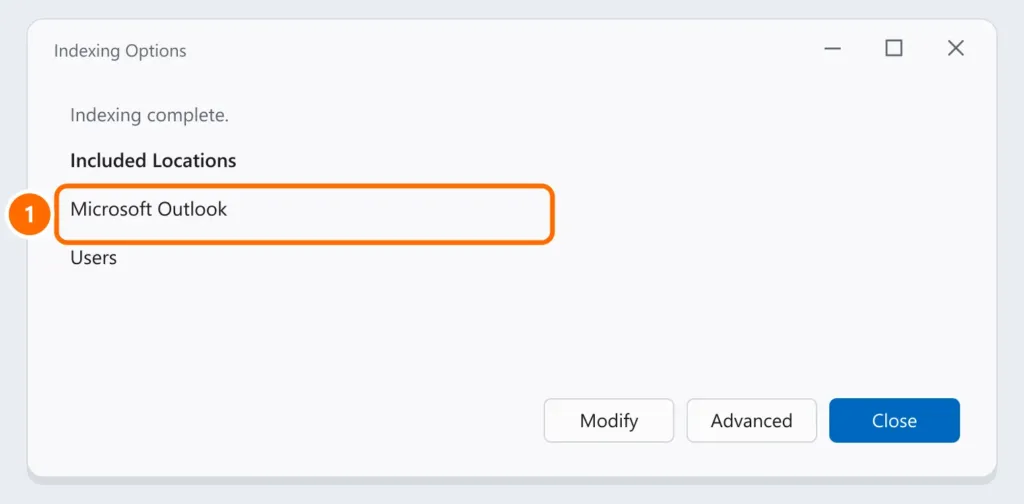
Very large mailboxes weigh on the index: Microsoft points to performance degrading above 6 million items. If search only fails on old messages kept in an Outlook PST file, check that the file is open in Outlook, because only what is connected to the profile gets indexed.
Rebuild the index
If the status never moves forward, or the results are incomplete even with everything set up, rebuild the catalog:
- In Indexing Options, select Advanced.
- On the Index Settings tab, under Troubleshooting, select Rebuild.
- In the Rebuild Index window, select OK.
Your files aren’t deleted, only the catalog. Microsoft recommends letting the indexer run for up to 24 hours and keeping more than 1 GB free on the drive. Do it at the end of the workday. If usage is still high the next day, see high CPU usage on Windows 11.
Nothing worked: reset Windows Search
Microsoft’s official script resets search without touching your documents, and it needs an administrator account. On PCs managed by IT, running scripts may be blocked on purpose; in that case, ask whoever manages them.
- Download ResetWindowsSearchBox.ps1 from the link on the Fix problems in Windows Search page and save it to a local folder.
- Open Windows PowerShell as administrator and run
Get-ExecutionPolicy. Write down the value. - If it isn’t Unrestricted, run
Set-ExecutionPolicy -Scope CurrentUser -ExecutionPolicy Unrestricted, confirm with Y and close the window. - Right-click the downloaded file and select Run with PowerShell. If you see “Do you want to allow this app to make changes to your device?”, select Yes.
- When Done appears, run
Set-ExecutionPolicy -Scope CurrentUser -ExecutionPolicy <value you wrote down>and confirm with Y.
If PowerShell says the file cannot be loaded because running scripts is disabled on this system, the policy wasn’t changed: go back to step 2.
Before moving on to heavier fixes, create a test user account and search from it. If it works there, the fault is in the user’s profile, not in Windows.
Pending updates
Search bugs sometimes arrive with one update and leave with the next. Open Settings › Windows Update › Check for updates, install everything and restart. If the update itself fails, see Windows Update errors.
Frequently asked questions
Will rebuilding the index or resetting search delete my files?
No. Both only rebuild the search catalog and settings. Documents, emails and programs stay where they are; results will just be incomplete until indexing finishes again.
Does the index store extracts from company documents?
Yes: besides the name and path, Windows catalogs the contents of text-based files, and installed programs can read that data. On machines holding customer data, stick to software from trusted sources and remove from the index any folder nobody needs to search.


