
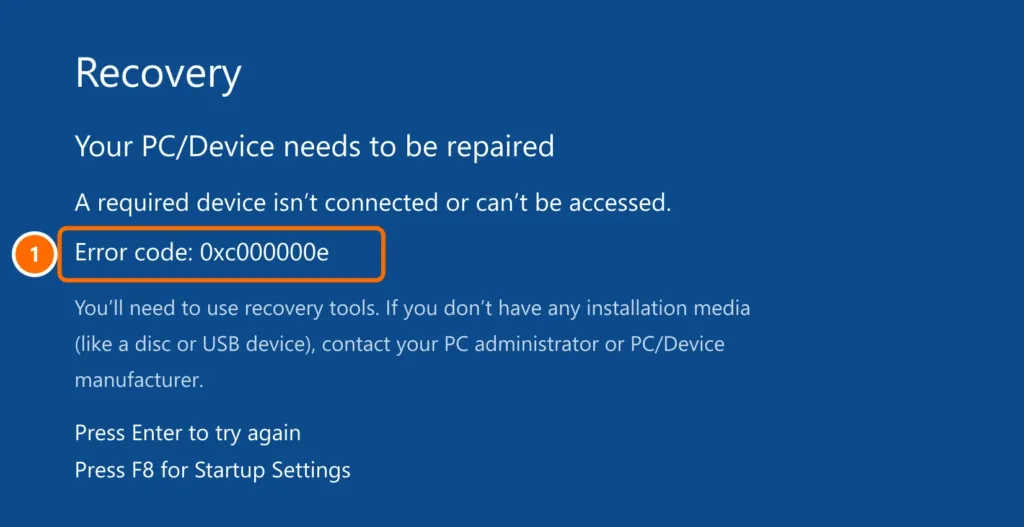
The computer turns on but Windows won’t load: the screen stays black, error 0xc000000e (also searched as 0xc00000e) (“a required device isn’t connected”) appears, or Automatic Repair loops. Before you think about reinstalling, follow these steps — most cases are fixed without losing files.
In this article
Black screen with a mouse cursor
Windows loaded, but the interface didn’t appear.
- Press Windows + Ctrl + Shift + B — this restarts the graphics driver (the screen flickers and you hear a beep).
- Press Ctrl + Alt + Del, open Task Manager, click Run new task and type
explorer.exe. - If you use an external monitor or TV, disconnect it and test with just the laptop screen, or press Windows + P to switch display mode.
Error 0xc000000e or “boot device not found”
- Unplug USB drives, external hard drives and other USB devices and restart.
- Enter the BIOS/UEFI and check that the system drive is detected and first in the boot order.
- If you recently changed BIOS settings (AHCI/RAID mode or Intel VMD), revert them.
Use the Windows Recovery Environment
After two or three failed boots, Windows opens Automatic Repair. Click Advanced options › Troubleshoot › Advanced options.
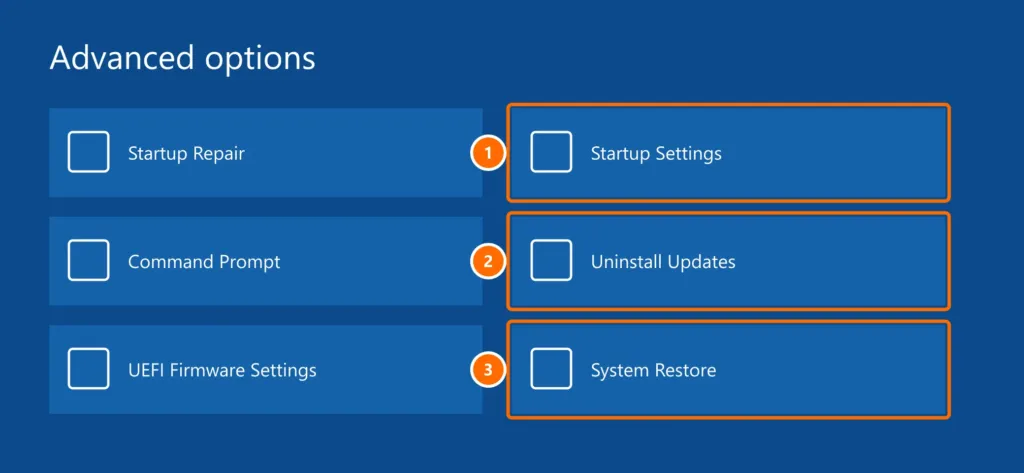
- Startup Repair: automatically fixes the most common boot problems.
- Uninstall Updates: removes the latest update if the problem started after it.
- System Restore: goes back to an earlier point without deleting files.
- Startup Settings: lets you boot into Safe Mode.
Rebuild the boot configuration
If Startup Repair fails, open Command Prompt from Advanced options and run:
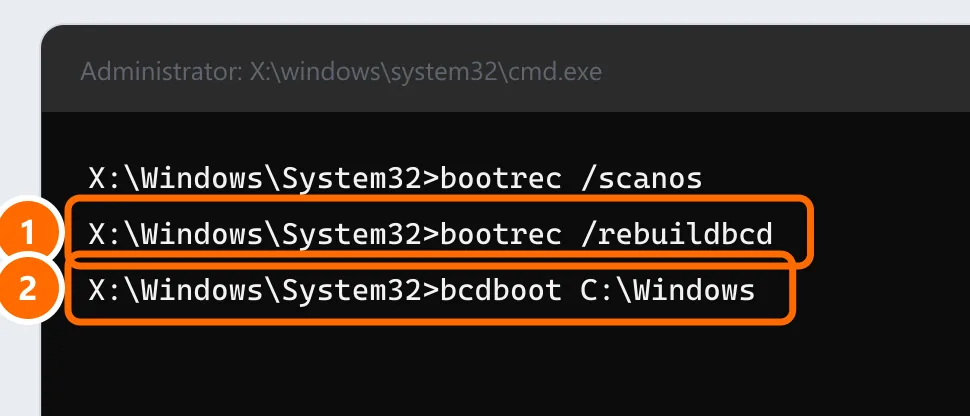
bootrec /scanos
bootrec /rebuildbcd
bcdboot C:\WindowsAsked for a BitLocker recovery key?
If a blue screen asks for the BitLocker recovery key, it’s saved in the Microsoft account used on the computer: go to aka.ms/myrecoverykey on another device. At work, ask your IT administrator.
Last resort: reset while keeping files
Under Troubleshoot › Reset this PC, choose Keep my files. Windows is reinstalled and your documents are kept, but you’ll need to reinstall your programs.
FAQ
The PC stays on the logo and goes no further. What should I do?
Force it off three times during loading to open Automatic Repair, then use the options above.
Automatic Repair mentions “SrtTrail.txt”.
That’s the log of a failure the repair couldn’t fix. Use Uninstall Updates, System Restore and the boot commands.
Will I lose my files?
None of the steps in this guide delete files. Only “Reset this PC” with “Remove everything” wipes data.


