Your mouse stopped responding, the cursor freezes, jumps or moves slowly? First identify the type of mouse — wired, wireless with a USB receiver or Bluetooth — and follow the steps in order.
In this article
Step 1: the basics that fix most cases
- Wireless: replace the battery or charge it, and check the on/off switch under the mouse.
- Plug the USB receiver (or cable) into another port, ideally directly on the computer, without a hub. On desktops, use the rear ports.
- Test the mouse on another computer. If it doesn’t work there either, the mouse is faulty.
Step 2: Bluetooth mouse
- Under Settings › Bluetooth & devices, remove the mouse from the list (⋯ › Remove device).
- Put the mouse in pairing mode (usually by holding the connect button for a few seconds) and click Add device › Bluetooth.
If Bluetooth doesn’t even show up, see Bluetooth not showing up on Windows 11.
Step 3: reinstall the driver
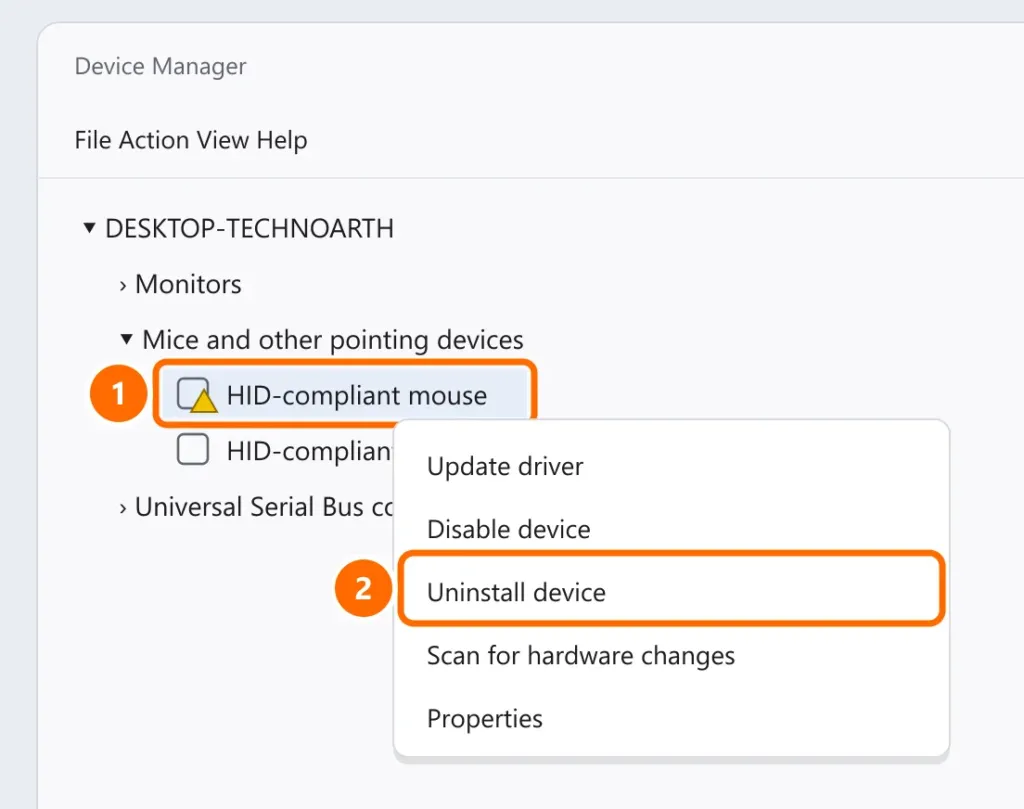
- Right-click the Start button (or press Windows + X) and open Device Manager.
- Expand Mice and other pointing devices. If there’s a yellow warning, uninstall the device.
- Unplug and replug the mouse (or restart). Windows reinstalls the driver.
Step 4: a mouse that freezes or disappears after a while
Windows can turn off the USB port to save power. Turn that off in the USB Root Hub properties — the walkthrough is in USB device not recognized (step 4).
Cursor slow, fast or jumping
- Adjust the speed under Settings › Bluetooth & devices › Mouse › Mouse pointer speed.
- Optical mice struggle on glass, mirrors and glossy surfaces: use a mouse pad.
- Clean the sensor under the mouse with a dry cotton swab.
FAQ
Clicks fail or double-click on their own.
That’s wear on the button switch — a common physical fault on mice used for years. The fix is replacing the mouse.
The mouse works, but the scroll wheel doesn’t.
Test in another app. If it fails everywhere, clean the wheel; if only in one app, it’s that app’s setting. Mouse maker software can also remap the wheel.
On my laptop, the touchpad works but the mouse doesn’t.
Try another port and step 3. If it’s the other way around, see touchpad not working.