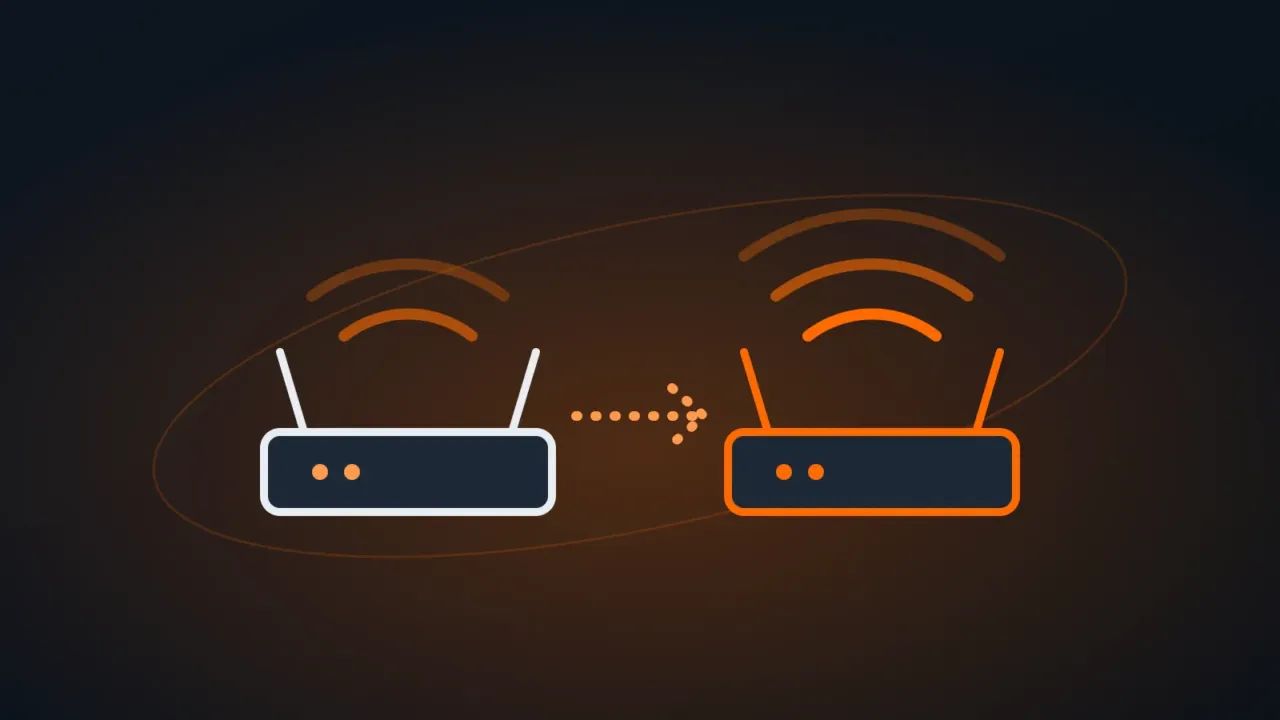
An old router sitting in a drawer can extend the Wi-Fi at home or in the office. There are three ways to do it, and the result depends a lot on which one you use. Option names vary by brand and model (TP-Link, Mercusys and others), but the logic is the same.
| Method | How it works | Result |
|---|---|---|
| Wired access point | The second router gets internet over an Ethernet cable | Best: full speed at the new spot |
| Repeater (range extender) mode | The second router rebroadcasts the wireless signal | Easy, but speed usually drops |
| WDS bridging | The routers link over Wi-Fi in bridge mode | An alternative when there’s no repeater mode |
In this article
Before you start
- Note the main router’s network name (SSID), password and channel.
- Factory reset the router you’ll use as the repeater (hold the Reset button for about 10 seconds).
- Connect your computer to it with a cable and open the admin page at the address on its label (for example,
192.168.0.1, or the maker’s address such astplinkwifi.net).
Option 1: wired access point (recommended)
- On the second router, turn on Access Point mode if it has one. If not: turn off DHCP and change its LAN IP to a free address on the main network (for example,
192.168.0.2). - Set up Wi-Fi with the same name and password as the main network so devices switch between them automatically.
- Run a cable from a LAN port on the main router to a LAN port on the second one.
Option 2: repeater (range extender) mode
- In the admin page, look for Operation Mode and choose Repeater or Range Extender.
- Scan for networks, select the main one and enter its password.
- Save and restart. Place the repeater halfway, where it still gets a good signal from the main router.
Option 3: WDS bridging
For models without a repeater mode:
- Change the second router’s LAN IP to a free address on the main network (for example,
192.168.0.2) and log back in at the new IP. - Under Wireless, set the same channel as the main router.
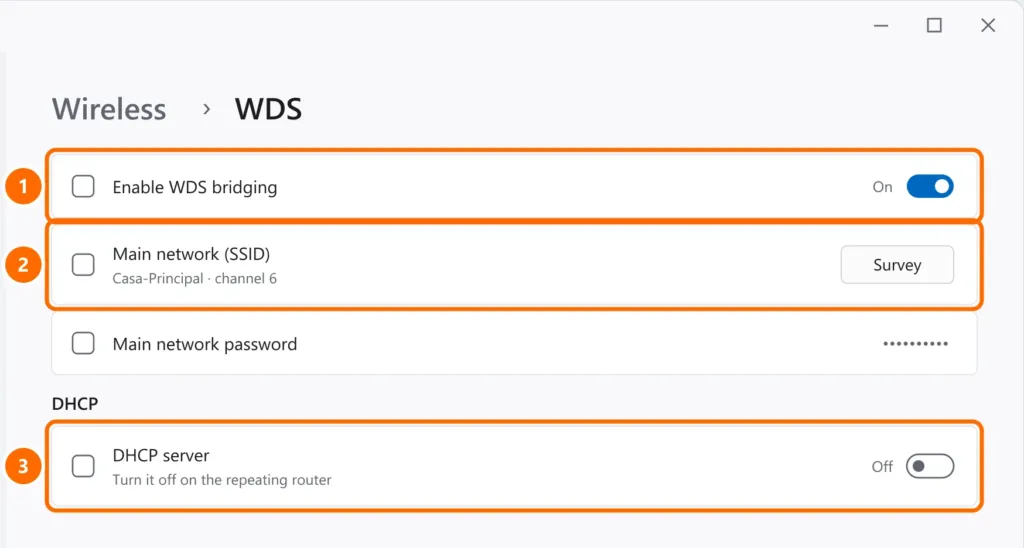
- Turn on WDS bridging, click Survey, choose the main network and enter the password.
- Turn off the DHCP server on the second router and save.
FAQ
Where should I put the repeater?
Halfway between the router and the dead zone — where the main network’s signal is still good. Too far away, it just repeats a weak signal.
Can I use the same network name?
Yes. With the same name and password, devices switch between points on their own. If you prefer control, use different names.
Is a mesh system a better buy?
For large homes, yes — see how to improve your Wi-Fi signal. But an old router used as a wired access point is often the cheapest, most effective option.