
The internet drops for a few seconds, comes back, drops again… Before switching providers or buying a new router, find out where the connection is failing. Often the cause is a Windows setting, such as power saving turning off your network adapter.
In this article
Step 1: find where it fails
Open two terminals and leave these tests running while the connection drops (replace 192.168.0.1 with your router’s IP, shown as “Default Gateway” in ipconfig):
ping -t 192.168.0.1
ping -t 8.8.8.8| What happens when it drops | Where the problem is |
|---|---|
| Both tests stop responding | Between the PC and the router (Wi-Fi, network adapter, driver) |
Only the 8.8.8.8 test fails | Your provider’s connection or the router itself |
| It only drops on one device | That computer’s settings or driver |
Press Ctrl + C to stop the tests.
Step 2: generate the Windows Wi-Fi report
Windows logs every Wi-Fi disconnection. To see the history for the last few days:
netsh wlan show wlanreportThe command creates an HTML report at C:\ProgramData\Microsoft\Windows\WlanReport\wlan-report-latest.html. Open it in your browser to see when and why disconnections happened.
Step 3: stop Windows from turning off the network adapter
To save power, especially on laptops, Windows can turn off the network adapter — and the connection drops.
- Right-click the Start button and open Device Manager.
- Expand Network adapters and double-click your Wi-Fi (or Ethernet) adapter.
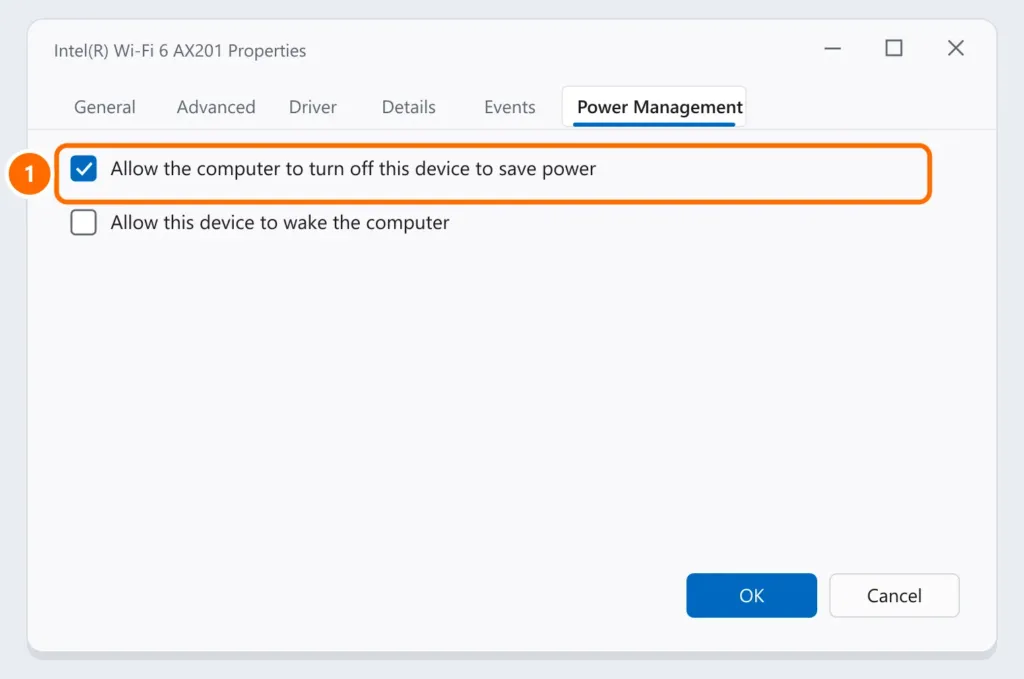
- On the Power Management tab, uncheck the option that lets the computer turn off the device to save power, then click OK.
Step 4: update (or roll back) the driver
- Download the latest network driver from your laptop or motherboard maker’s website.
- If the drops started after an update, open the adapter’s properties in Device Manager and use Roll Back Driver on the Driver tab.
Step 5: improve the signal or use a cable
A weak signal causes frequent drops. Move closer to the router, change the channel or use the 5 GHz band — see how to improve your Wi-Fi signal. For desktop computers, an Ethernet cable fixes the problem in most cases.
Step 6: reset Windows networking
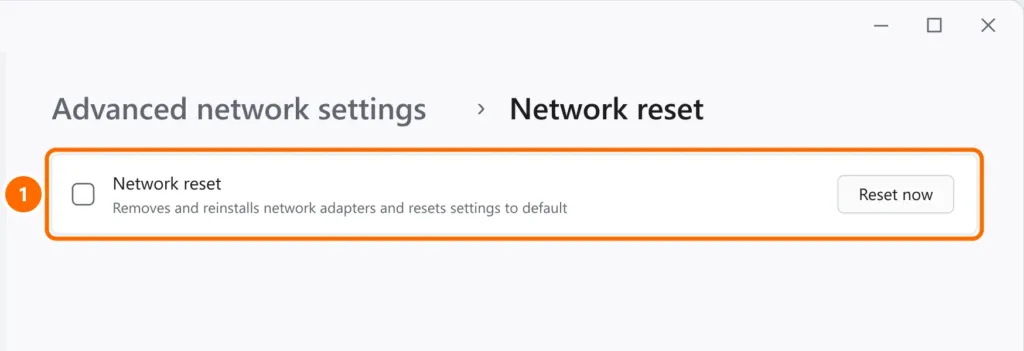
If nothing else worked, a network reset removes and reinstalls your adapters and restores default network settings:
- Open Settings › Network & internet › Advanced network settings › Network reset.
- Click Reset now and confirm.
When it’s your provider’s fault
If step 1 shows the router responds but the internet drops, write down the times of each drop (the report from step 2 helps) and open a ticket with your provider. With that information, support is usually faster.
FAQ
Why does the internet only drop on my laptop?
Usually because of adapter power saving (step 3), an outdated driver or a weak signal where the laptop sits.
The internet drops when I download files. What could it be?
Router overload, a faulty driver or an overheating router. Update the router firmware and the network driver, and test with a cable.
Will resetting the router fix it?
Restarting it (turning it off and on) helps. A factory reset wipes all settings and should be a last resort.