
Your computer freezes, apps take forever to open and Task Manager shows the disk at 100%? That means the drive is working at its limit — and the whole system is waiting on it. The first step is finding out what is using the disk.
In this article
Step 1: find the process using the disk
- Press Ctrl + Shift + Esc to open Task Manager.
- In Processes, click the Disk column header to sort from highest to lowest.
- Note the process at the top and watch it for a minute or two.
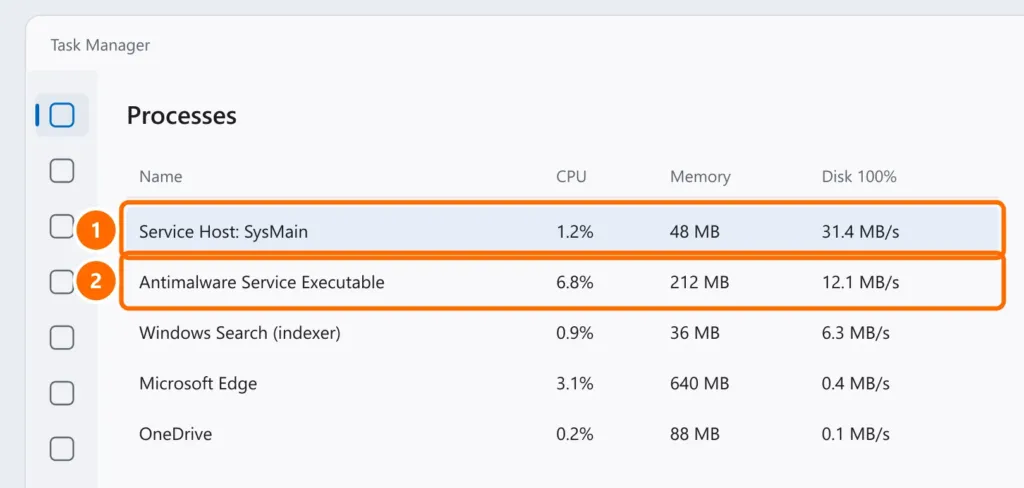
| Process at the top | What it is | What to do |
|---|---|---|
| Service Host: SysMain | Preloads apps into memory | Step 3 |
| Windows Search / SearchIndexer | Indexes files for search | Step 4 |
| Antimalware Service Executable | Microsoft Defender scan | Let it finish; see step 5 |
| Windows Update / TiWorker | Installing updates | Wait and restart |
| OneDrive, Dropbox, Google Drive | File sync | Pause syncing until it’s done |
Step 2: restart and finish updates
- Open Settings › Windows Update and install anything pending.
- Restart from Start › Power › Restart (not “Shut down”, which on Windows 11 can keep part of the system hibernated).
Step 3: pause SysMain
SysMain speeds up opening apps, but on mechanical hard drives it can keep the disk at 100%. In PowerShell as administrator:
Stop-Service -Name SysMain
Set-Service -Name SysMain -StartupType Manual
Use the computer normally for a day. If it makes no difference, restore the default with Set-Service -Name SysMain -StartupType Automatic.
Step 4: rebuild the search index
If Windows Search is always at the top, the index may be corrupted: open Settings › Privacy & security › Searching Windows › Advanced indexing options › Advanced › Rebuild. Rebuilding takes a while, but only happens once.
Step 5: check drive health
In PowerShell:
Get-PhysicalDisk | Select-Object FriendlyName, MediaType, HealthStatusIf MediaType shows HDD, the real fix is upgrading to an SSD — the difference is huge. See NVMe vs SATA SSD: which to choose.
FAQ
Can low RAM cause 100% disk usage?
Yes. When RAM is full, Windows uses the disk as virtual memory. Close apps and tabs; with 4 GB or less, consider adding memory. Also see Windows 11 slow and freezing.
Can I turn off Windows Search for good?
You can, but search in the Start menu and Outlook becomes much slower. Rebuilding the index (step 4) is the better option.
The disk hits 100% only when gaming or downloading.
Downloads and games loading files genuinely use the disk. If the PC only freezes at those moments, the drive (especially a hard drive) is at its limit.


