Slow startup, apps freezing and everything lagging: before you reinstall Windows, find out what’s dragging it down. Most of the time the slowness comes from apps launching with Windows, a nearly full drive, a power-saving mode or an old hard drive.
In this article
Step 1: see what’s using resources
- Press Ctrl + Shift + Esc to open Task Manager.
- In Processes, click the CPU, Memory and Disk columns to sort by what’s using the most.
| What’s high | Likely cause |
|---|---|
| Disk at 100% all the time | Mechanical hard drive, full drive or an update running |
| Memory above 85% | Not enough RAM for your workload, too many tabs or apps open |
| High CPU while idle | A background app, an update or malware |
Step 2: remove apps from startup
Many apps set themselves to launch with Windows and slow down startup.
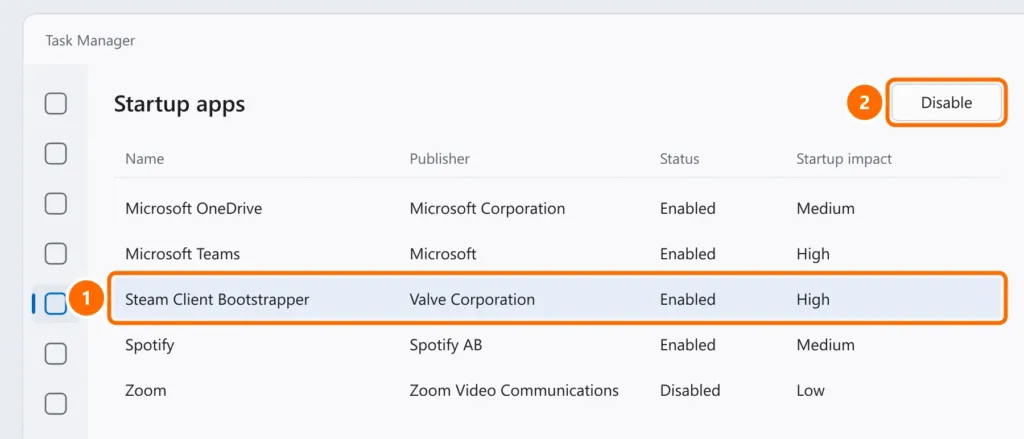
- In Task Manager, open Startup apps.
- Select High-impact apps you don’t need as soon as the PC starts and click Disable.
Step 3: adjust the power mode
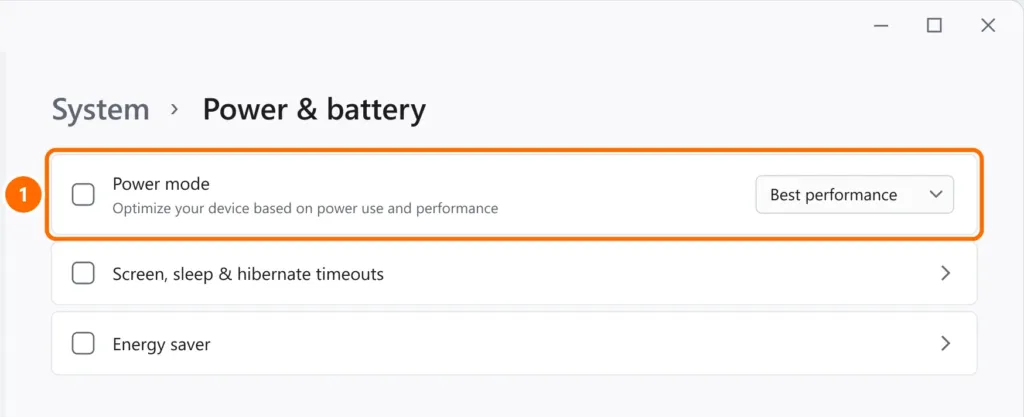
- Open Settings › System › Power & battery.
- Under Power mode, choose Best performance — especially when the laptop is plugged in.
To make the interface lighter on older computers, also turn off Animation effects and Transparency effects under Settings › Accessibility › Visual effects.
Step 4: free up disk space
With the C: drive nearly full, Windows slows down and updates fail. Keep at least 15% free — see how to free up disk space on Windows 11.
Step 5: update Windows and drivers
Under Settings › Windows Update, install pending updates and, under Advanced options › Optional updates, any drivers offered. Restart afterward.
Step 6: scan for malware and system file problems
- In Windows Security › Virus & threat protection › Scan options, run a Full scan.
- Then, in PowerShell as administrator, check and repair system files:
sfc /scannow
DISM /Online /Cleanup-Image /RestoreHealthStep 7: when the problem is hardware
- Mechanical hard drive: the number-one cause of slowness in computers more than a few years old. Switching to an SSD is the most noticeable upgrade — see NVMe vs SATA SSD: which one to choose.
- RAM: for Windows 11 with a browser and Office, 8 GB is the comfortable minimum; 16 GB is recommended for professional use.
- Overheating: laptops with dusty vents throttle performance to cool down. An internal cleaning fixes it.
FAQ
Will reinstalling Windows make my PC faster?
For a while, but if the cause is a mechanical hard drive or too little memory, the slowness comes back. Follow this guide first and consider an SSD upgrade.
Why is my laptop slow only on battery?
Because of the power mode and battery saver, which limit processor performance. That’s normal; when plugged in, use “Best performance”.
How much memory does Windows 11 need?
The official minimum is 4 GB, but in practice 8 GB is the comfortable minimum, and 16 GB is ideal for working with many apps open.


