Despite the scary name, error 0x8000FFFF — “Catastrophic failure” is a generic Windows code for “something unexpected went wrong”. It doesn’t mean your computer is broken. The fix depends on where the error appears.
In this article
Where the error appears
| Where | Start with |
|---|---|
| Windows Update | Steps 1 and 2 |
| Microsoft Store (downloading or updating apps) | Step 3 |
| System Restore or restore points | Steps 1 and 4 |
| Copying, pasting or moving files | Step 5 |
Step 1: repair system files
In PowerShell or Command Prompt as administrator:
DISM /Online /Cleanup-Image /RestoreHealth
sfc /scannow
Restart and try again.
Step 2: reset Windows Update
If the error appears in updates, check the date and time, disconnect any VPN and reset the Windows Update components — the full walkthrough is in Windows Update error: how to fix it.
Step 3: clear the Microsoft Store cache
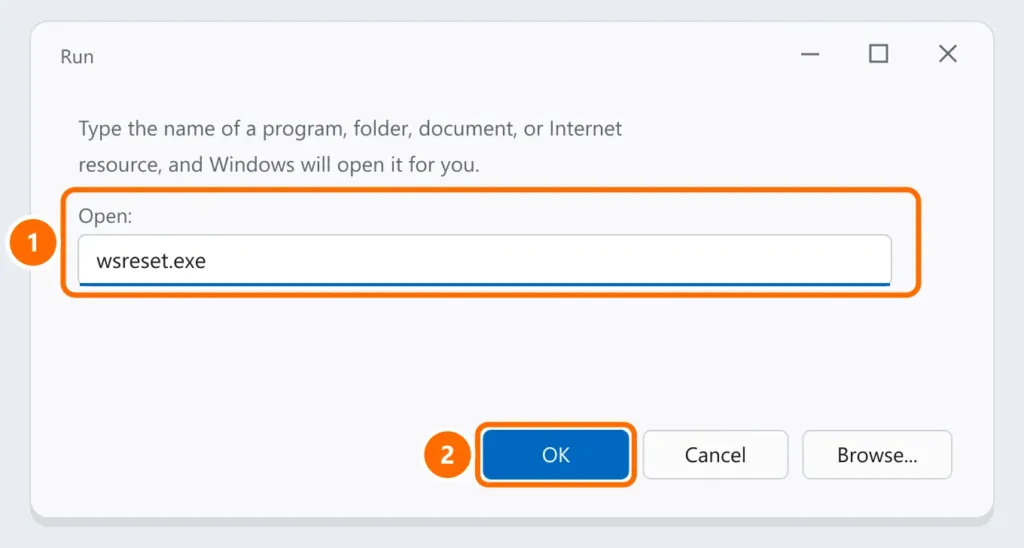
Press Windows + R and run wsreset.exe. A black window opens and, a few seconds later, the Store opens.
Step 4: System Restore and restore points
- Make sure System Protection is on for the C: drive (search the Start menu for “Create a restore point”).
- Temporarily turn off third-party antivirus, which often blocks restore point creation.
- Try restoring from Safe Mode — see blue screen on Windows 11 for how to get there.
Step 5: when copying or moving files
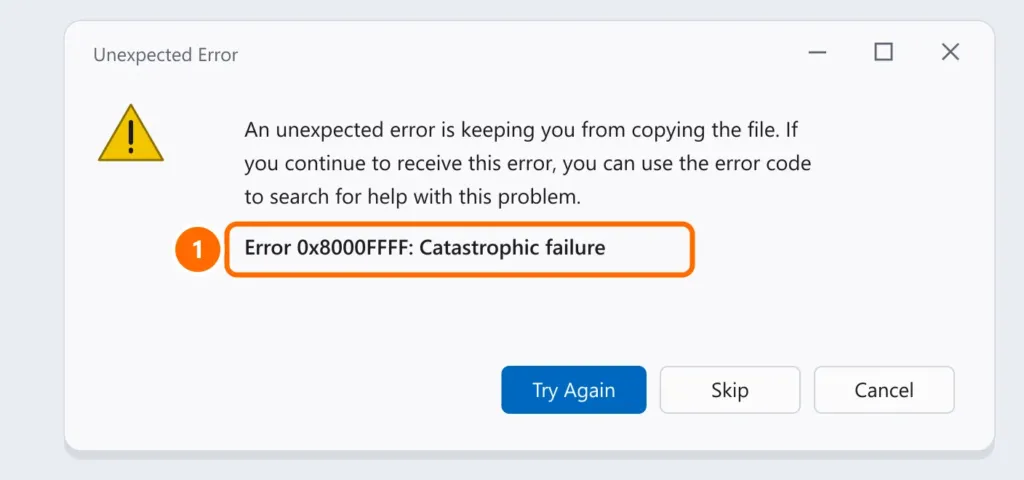
- Check that you have permission on the destination folder and that the destination drive isn’t full.
- Copy in smaller batches if there are many files.
- Restart File Explorer: in Task Manager, select “Windows Explorer” and click Restart task.
Step 6: clean boot
If nothing worked, a background program may be interfering. Do a clean boot: in msconfig, on the Services tab, check Hide all Microsoft services, click Disable all and restart. Test, then re-enable the services.
FAQ
Does “catastrophic failure” mean my drive is failing?
Not necessarily. It’s a generic code. Only suspect the drive if you also see slowness, freezes or errors reading files.
The error appears when installing a specific program.
Run the installer as administrator, download it again from the official site and temporarily turn off your antivirus during installation.
Do I need to reinstall Windows?
Almost never. The steps above fix the vast majority of cases.


