The update downloads, reaches 100% and fails — or never starts, showing a code like 0x800f081f or 0x80072efe. Windows Update errors look scary, but almost all of them are fixed with the same steps, without reinstalling Windows.
In this article
Step 1: note the code and the update
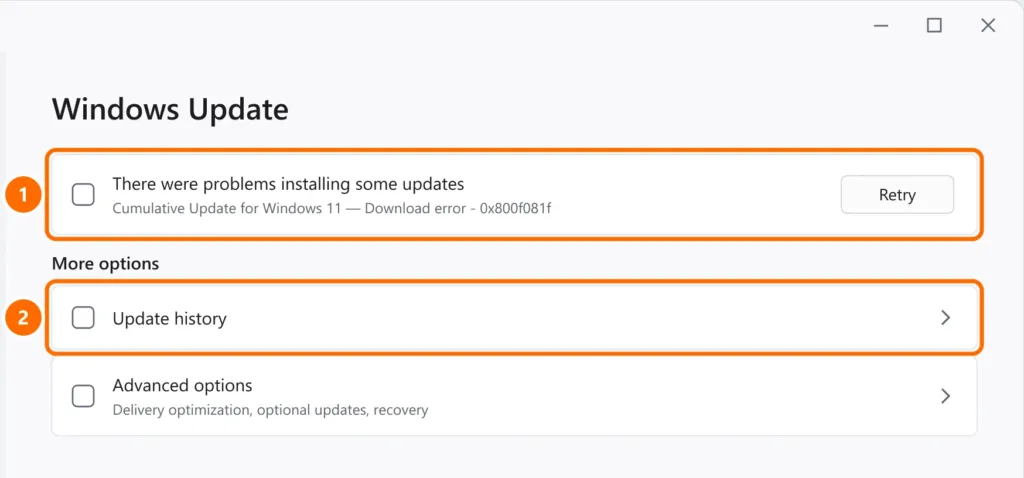
- Open Settings › Windows Update and write down the error code.
- Under Update history, see which update failed and its KB number (for example, KB5030219).
What the most common codes mean
| Code | What it usually means | Start with |
|---|---|---|
| 0x800f081f, 0x800f0831 | Corrupted or missing Windows component files | Step 4 (DISM and SFC) |
| 0x80072efe, 0x80072f8f | Interrupted connection, wrong date/time or a certificate problem | Step 3 (network, VPN and date) |
| 0x800f0922 | Couldn’t reach the update servers or low reserved space | Steps 3 and 2 |
| 0x80070002, 0x8024a105 | Incomplete download files | Step 5 (reset components) |
| 0x8000ffff | Unexpected failure during installation | Steps 4 and 5 |
Step 2: make sure you have free space
Large updates need several gigabytes free on the C: drive. If it’s nearly full, see how to free up disk space on Windows 11.
Step 3: check your connection, VPN and date
- Disconnect any VPN or proxy and temporarily turn off third-party antivirus.
- Make sure the date and time are correct under Settings › Time & language › Date & time (turn on automatic time).
- Try another network if you can. Corporate networks sometimes block update servers.
Step 4: repair system files
In PowerShell or Command Prompt as administrator, run these in order (DISM can take a while and look stuck — be patient):
DISM /Online /Cleanup-Image /RestoreHealth
sfc /scannow
Restart and try updating again. This step fixes most 0x800f081f and 0x800f0831 errors.
Step 5: reset Windows Update components
This clears the Windows Update download cache, which often gets corrupted. Run as administrator:
net stop wuauserv
net stop cryptSvc
net stop bits
net stop msiserver
ren C:\Windows\SoftwareDistribution SoftwareDistribution.old
ren C:\Windows\System32\catroot2 catroot2.old
net start wuauserv
net start cryptSvc
net start bits
net start msiserverStep 6: install the update manually
Using the KB number from step 1, search the Microsoft Update Catalog (catalog.update.microsoft.com), download the version for your system (x64 or ARM64) and install it with a double-click.
Step 7: reinstall Windows through Windows Update
If nothing else worked, Windows 11 can reinstall itself without deleting your files and apps:
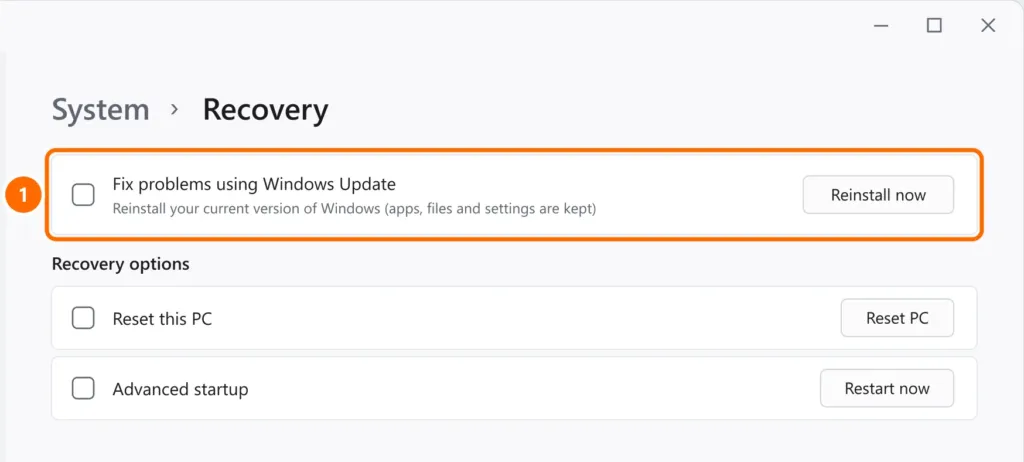
- Open Settings › System › Recovery.
- Under Fix problems using Windows Update, click Reinstall now.
FAQ
Is it safe to skip updates?
Not for long. Updates fix security holes used by scams and ransomware. Fix the error as soon as you can.
Windows Update is stuck at 0% or 100%. What should I do?
Wait at least an hour with the computer plugged in. If it doesn’t move, restart and follow steps 4 and 5.
Should I use apps that “repair” Windows Update?
There’s no need. Windows’ own tools (DISM, SFC and the component reset) do the same job safely.


