
Recording your screen is useful for showing an error to support, making a tutorial or saving a meeting (with the participants’ permission). All three systems can do it on their own.
In this article
On Windows 11: Snipping Tool
This is the best option for recording any part of the screen, including the desktop.
- Press Windows + Shift + R (or open the Snipping Tool and choose the video camera icon).
- Drag to select the area you want to record.
- Click Start. To record with sound, turn on system audio and/or the microphone in the toolbar that appears.
- Click Stop and then Save. Videos are saved in the Videos › Screen Recordings folder.
On Windows 11: Xbox Game Bar
It records the window of a program or game (it doesn’t record the desktop or File Explorer).
- With the program open, press Windows + Alt + R to start and stop recording.
- Or press Windows + G to open the bar and use the record button.
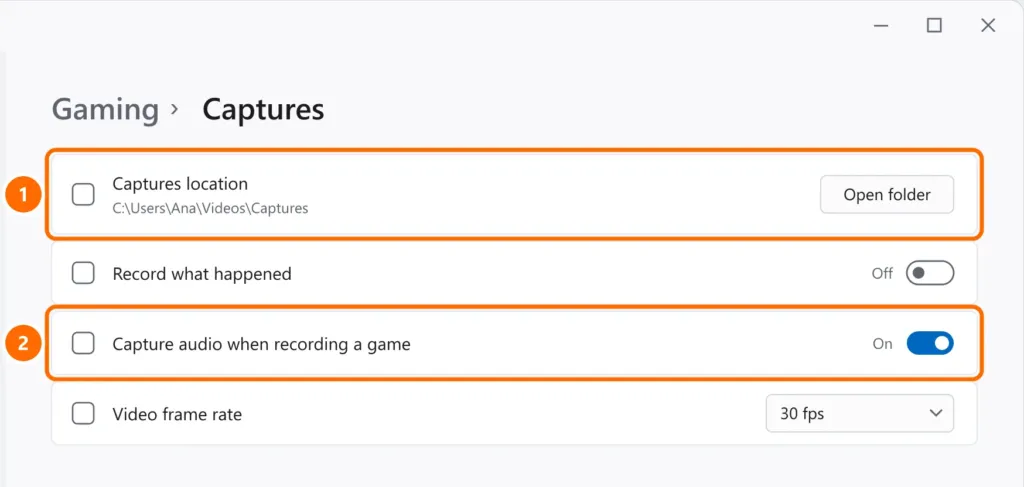
Videos are saved in the folder shown under Settings › Gaming › Captures:
On Android
- Swipe down from the top of the screen twice to open Quick Settings.
- Tap Screen record (or Screen recorder). If it isn’t there, tap the pencil to edit and drag the button into the list.
- Choose whether to record with no sound, with the phone’s sound (media) or with the microphone, and tap Start.
The video goes to your gallery, usually in a Screen recordings album.
On iPhone
- Open Control Center (swipe down from the top-right corner).
- Tap the Screen Recording button (a circle inside another circle). If it isn’t there, add it by editing Control Center.
- To record with the microphone, touch and hold the button and turn on the microphone.
- To stop, tap the bar or the red indicator at the top of the screen.
The video is saved in the Photos app.
The recording has no sound
- Windows: in the Snipping Tool, check that system audio was turned on. In Xbox Game Bar, check Capture audio when recording a game (screen above). If your PC has no sound at all, see no sound in Windows 11.
- Phone: calling apps and some streaming apps block audio (or video) recording to protect copyright or privacy.
FAQ
The recording shows a black screen.
Movies from streaming services and some banking apps block recording on purpose. There’s no way around it.
Can I record a Teams meeting?
Teams has its own recording feature (depending on the license), which notifies all participants. Only record with the permission of everyone in the meeting.


