Your laptop camera won’t turn on, shows a black image or the Camera app says it can’t find a camera. Most of the time the cause is simple: the privacy shutter, the key that turns the camera off, a Windows permission or another app using the camera at the same time.
In this article
Step 1: check the shutter and the camera key
- Many laptops have a sliding shutter over the lens. When it’s closed, the image is black or you see a crossed-out camera icon.
- Look for a key with a camera icon (often F8, F10 or together with Fn). It turns the camera on and off in hardware.
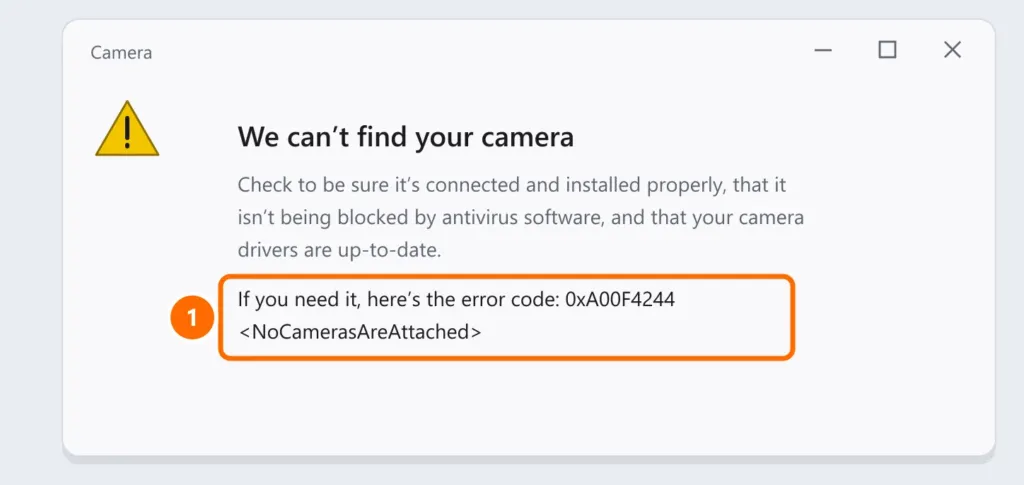
- On some models, that key disables the camera so completely that it disappears from Windows — hence error 0xA00F4244.
Step 2: close other apps using the camera
Only one app at a time can use the camera. Close Teams, Zoom, WhatsApp, Skype and browser tabs with video calls, then test again in the Windows Camera app.
Step 3: allow the camera in Windows privacy settings
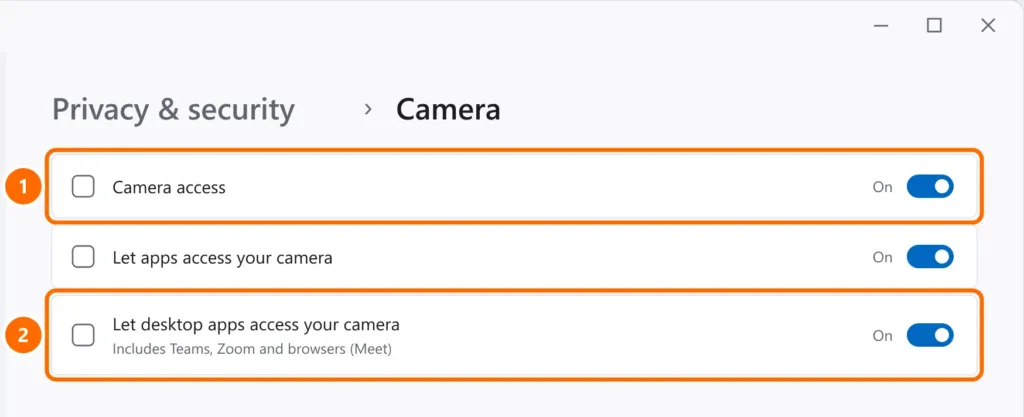
- Open Settings › Privacy & security › Camera.
- Turn on Camera access, Let apps access your camera and Let desktop apps access your camera.
Step 4: reinstall the camera driver
- Right-click the Start button and open Device Manager.
- Expand Cameras (or Imaging devices).
- Right-click the camera and choose Uninstall device. Restart the laptop: Windows reinstalls the driver.
- If the camera isn’t listed anywhere, go back to step 1: it’s probably turned off by the key or in the BIOS.
Step 5: Teams, Zoom and Google Meet
- Teams and Zoom: in the app’s Devices settings, pick the right camera. If a virtual camera is installed (such as OBS’s), it may be selected instead of the real one.
- Google Meet and other sites: click the icon to the left of the address, set Camera to Allow and reload the page.
If the problem is only in Teams, also see Teams won’t open or doesn’t detect microphone and camera. For audio, see microphone not working on Windows 11.
FAQ
The camera works in the Camera app but not in Teams.
It’s a permission or device selection issue in Teams. Check step 5 and make sure “Let desktop apps access your camera” is on.
The image shows up, but it’s very dark or grainy.
Clean the lens, add light in front of you and turn off camera effects in the app. 720p laptop cameras are genuinely limited in low light.
Can I use my phone as a webcam?
Yes. Windows 11 can use the camera of a linked Android phone through the Phone Link app, and there are virtual webcam apps for Android and iPhone.


