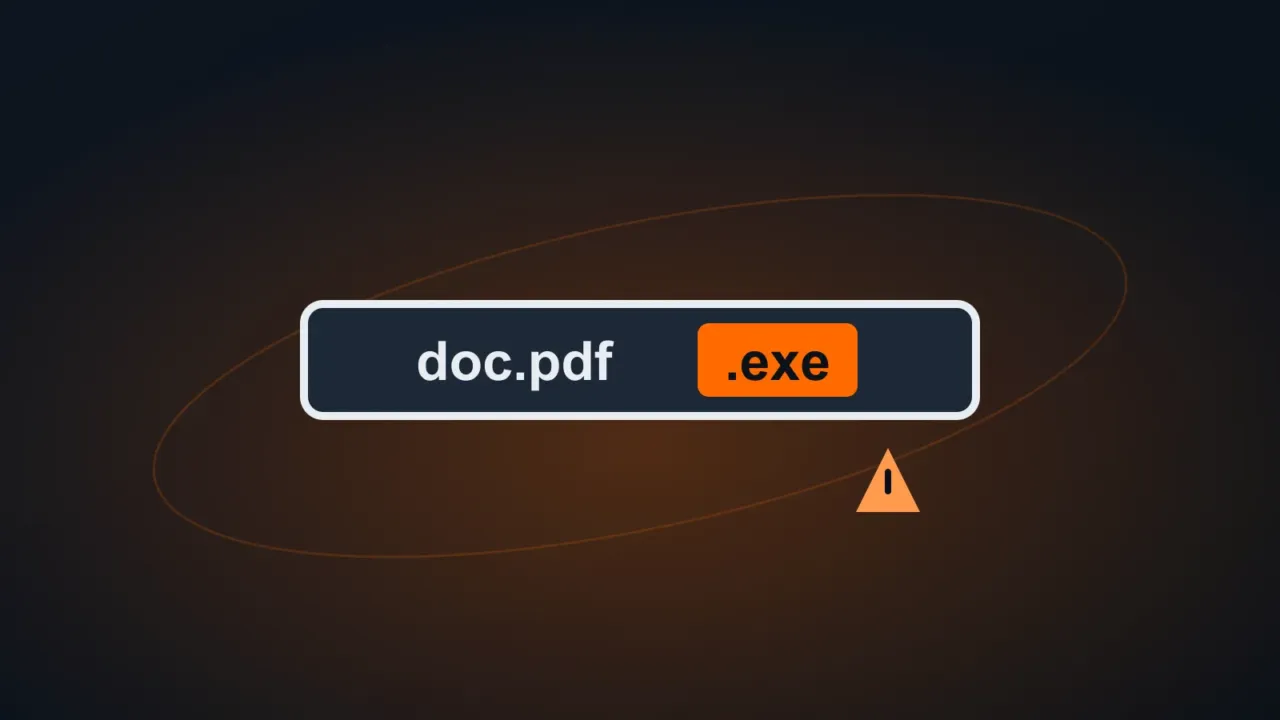
The extension is the end of a file name, after the dot: .pdf, .docx, .xlsx, .jpg, .exe. It tells Windows what type of file it is and which program to open it with. The problem: by default, Windows hides the most common extensions.
In this article
How to show extensions
Quick way: in File Explorer, click View › Show and check File name extensions.
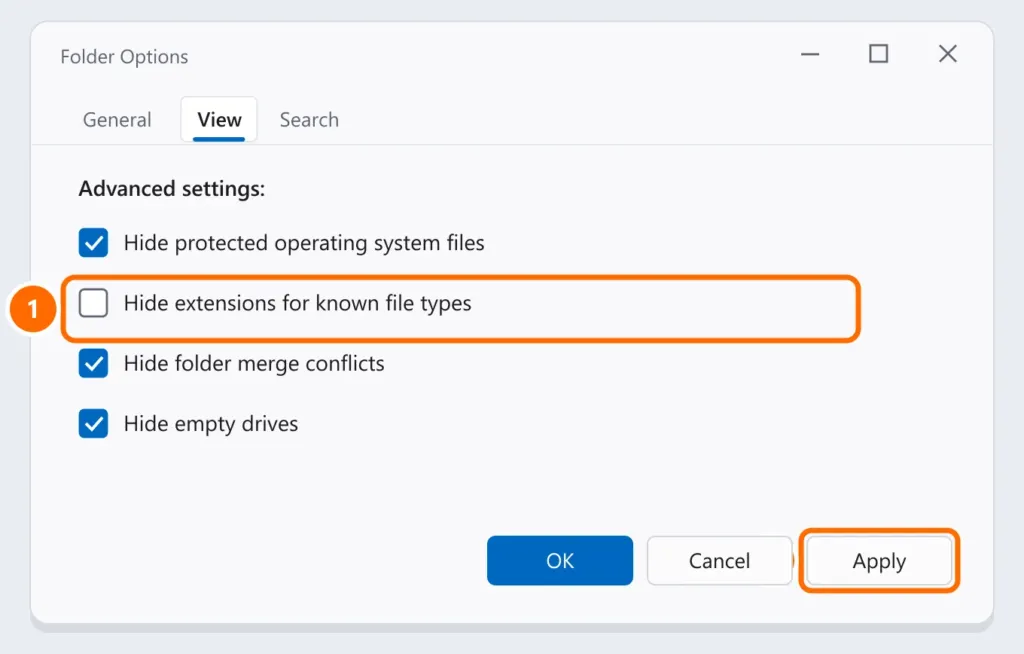
Through Folder Options (also works in Windows 10):
- In File Explorer, click the three dots (…) › Options.
- On the View tab, uncheck Hide extensions for known file types.
- Click Apply.
Why it protects you
Scammers send files with names like invoice.pdf.exe or bill.pdf.scr. With extensions hidden, Windows shows only invoice.pdf — it looks like a PDF, but it’s a program. With extensions visible, the .exe shows up and the scam becomes obvious.
Extensions that run code and deserve suspicion in attachments: .exe, .scr, .bat, .cmd, .js, .vbs, .msi, .lnk, .iso and .html (fake sign-in pages). See how to spot phishing.
Most common extensions
| Extension | Type | Opens with |
|---|---|---|
| PDF document | Edge, Adobe Acrobat Reader | |
| .docx / .doc | Word document | Word, Google Docs |
| .xlsx / .xls / .csv | Spreadsheet | Excel, Google Sheets |
| .jpg / .png / .heic | Image | Photos |
| .mp4 / .mov | Video | Media Player |
| .zip / .rar / .7z | Compressed file | File Explorer, 7-Zip |
| .exe / .msi | Program / installer | Windows itself (be careful) |
Can I change the extension?
Changing the extension doesn’t convert the file. Renaming photo.heic to photo.jpg doesn’t transform the image; it simply stops opening. To convert, use the right program (for example, Save As in Word to create a PDF, or the Photos app to save in another format).
Changing it only makes sense to fix a wrong extension, such as a .csv file that was saved as .txt. Windows warns that the file might become unusable: only confirm if you’re sure.
FAQ
I don’t know which program to open a file with.
Check the extension and look it up in the table above. For PDFs that won’t open, see PDF won’t open. For ZIP files, see how to zip and unzip files.
How do I change which program opens each file type?
Settings › Apps › Default apps › type the extension (for example, .pdf) and choose the app.


