The taskbar can “disappear” for three very different reasons: it’s set to hide itself, Windows Explorer froze or it moved to another monitor. Start with the simplest.
In this article
1. Exit full screen
Browsers, videos and games in full screen hide the taskbar. Press F11 (browser) or Esc. If it still doesn’t appear, press the Windows key: the Start menu opens along with the taskbar.
2. Turn off auto-hide
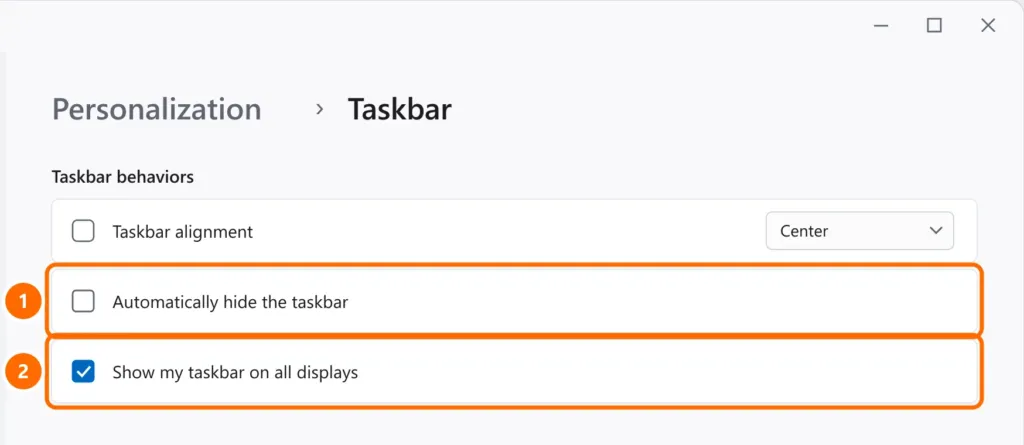
If the taskbar hides and only comes back when you move the mouse to the bottom edge:
- Right-click an empty area of the desktop › Personalize (or open Settings › Personalization › Taskbar).
- Open Taskbar behaviors.
- Uncheck Automatically hide the taskbar.
3. Restart Windows Explorer
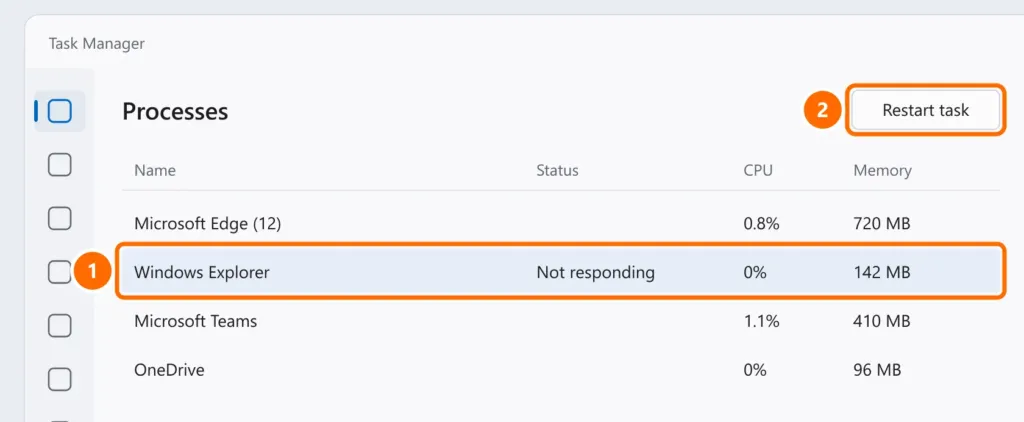
If the taskbar is gone for good, frozen or missing its icons, the process that draws it (Windows Explorer) has frozen.
- Press Ctrl + Shift + Esc to open Task Manager.
- Under Processes, select Windows Explorer.
- Click Restart task.
4. Two monitors
- The taskbar may be only on the other monitor. Under Taskbar behaviors, check Show my taskbar on all displays.
- If you disconnected a monitor, press Windows + P › PC screen only. See also second monitor not detected.
5. Repair the system
If the taskbar keeps disappearing after a restart, run the Windows file repair tools (sfc and DISM) and install pending updates. The step-by-step is in Start menu not working.
FAQ
The taskbar is on the side or at the top of the screen.
Under Settings › Personalization › Taskbar › Taskbar behaviors, adjust the position (recent Windows 11 updates brought back the option to put the taskbar on the side or at the top). See what’s new in the September Windows 11 updates.
Only some icons near the clock disappeared.
Under Taskbar › Other system tray icons, turn on the icons you always want to see.


