When the Start menu won’t open, the computer keeps working — it’s just harder to get to things. Use these shortcuts while you fix it:
- Windows + X (or right-click Start): opens a menu with Settings, Terminal, Task Manager and Shut down.
- Windows + I: opens Settings.
- Ctrl + Shift + Esc: opens Task Manager.
In this article
1. Restart the computer (for real)
Use Windows + X › Shut down or sign out › Restart. Restarting (rather than shutting down) makes sure Windows loads everything from scratch, even with Fast Startup turned on.
2. Restart Windows Explorer
- Press Ctrl + Shift + Esc.
- Under Processes, select Windows Explorer and click Restart task.
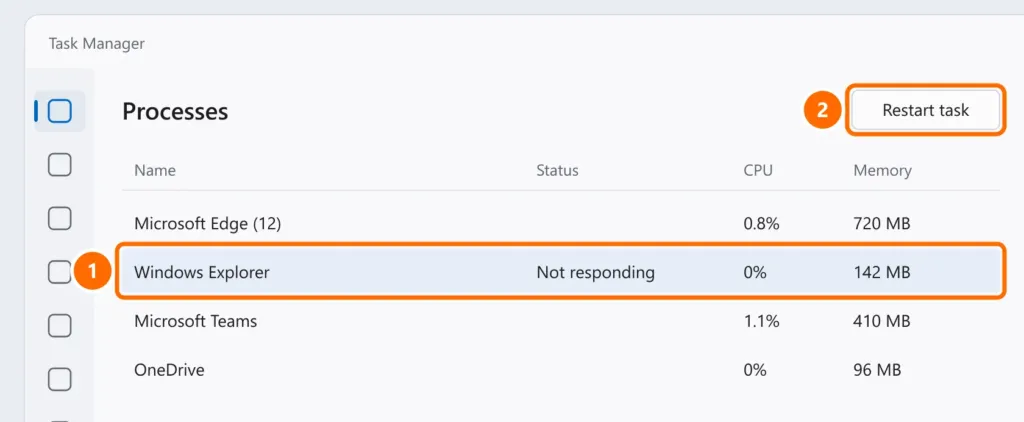
If that doesn’t fix it, on the Details tab of Task Manager, end the StartMenuExperienceHost.exe process. It comes back on its own in a few seconds.
3. Repair system files
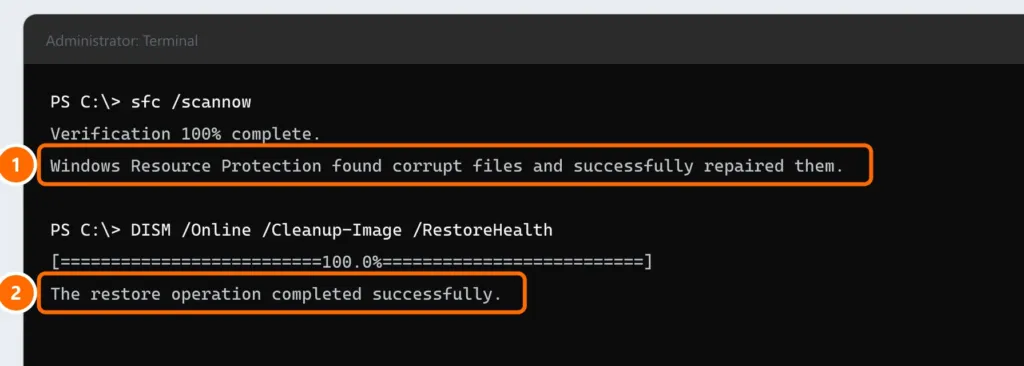
Press Windows + X › Terminal (Admin) and run both commands, one at a time:
sfc /scannow
DISM /Online /Cleanup-Image /RestoreHealth
Wait for each one to reach 100% (DISM may sit at 20% or 60% for several minutes; that’s normal) and restart the PC.
4. Install pending updates
Open Windows + I › Windows Update and install anything pending. Many Start menu problems are fixed in updates. If Windows Update shows an error, see Windows Update errors.
5. Test with another user
If the menu works for another user, the problem is in the original user’s profile.
- Settings › Accounts › Other users › Add account.
- Create a local test user, sign in with it and test the Start menu.
- If it works, copy your files to the new profile (or ask IT for help).
Last resort
If nothing worked, reinstall Windows keeping your files and apps through Windows Update: see how to reset Windows 11.
FAQ
I see “Critical Error: Your Start menu isn’t working”.
Follow steps 2 and 3. This message usually comes from corrupted system files or a problem with the user profile.
The taskbar disappeared too.
See taskbar disappeared.


