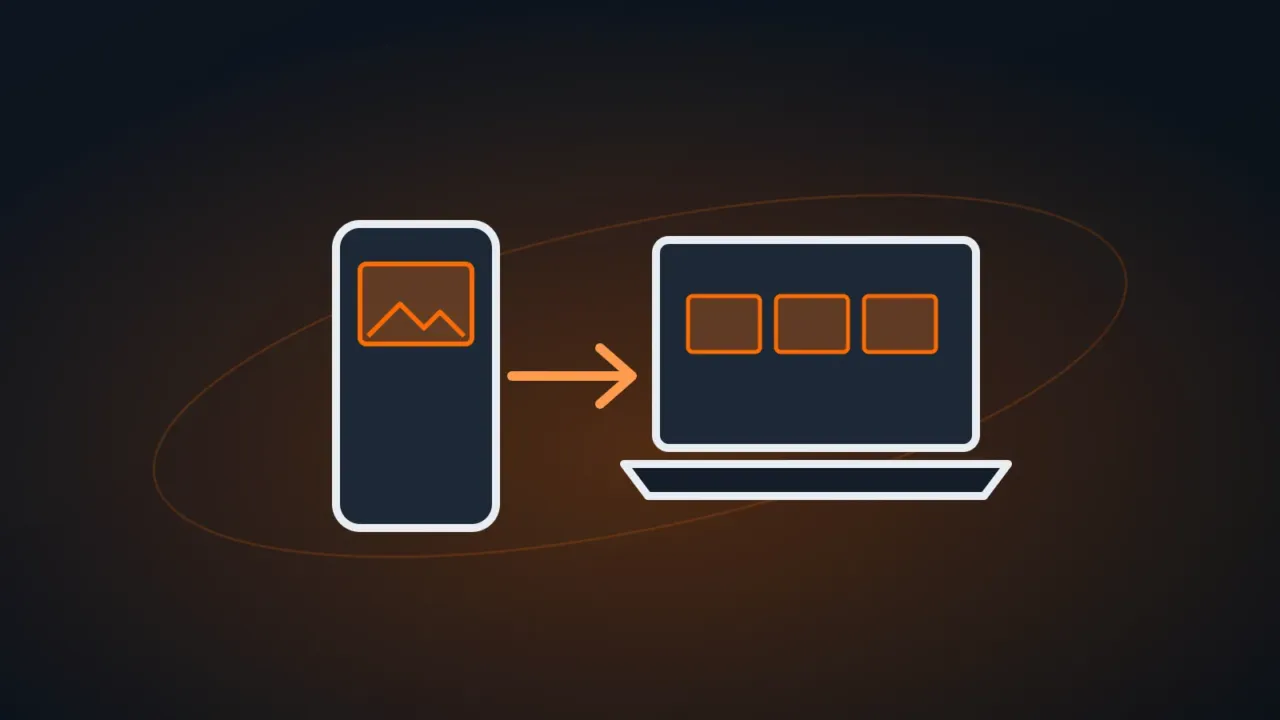
Phone storage full, or important photos you want to keep on your computer or send to work? You can do it with a cable (fastest for lots of photos) or wirelessly (handier day to day). Here’s how for Android and iPhone.
In this article
With a cable — Android
- Connect the phone to the computer with a USB cable that carries data (some cables only charge).
- Unlock the phone. In the USB notification, choose File transfer (the name varies: “Transfer files”, “MTP”).
- On the computer, open File Explorer: the phone shows up under This PC. Photos are in the DCIM › Camera folder.
- Copy the photos to a folder on the computer.
With a cable — iPhone
- Connect the iPhone with the cable and unlock it. Tap Trust when the iPhone asks whether to trust the computer.
- Open the Windows Photos app and use Import, or open the iPhone under This PC › Apple iPhone › Internal Storage › DCIM.
Wirelessly
- OneDrive: turn on camera upload in the OneDrive app on your phone. Photos appear in the OneDrive folder on your computer. Recent Windows 11 updates add a shortcut in Settings to set up this backup with a QR code — see what’s new in the September Windows 11 updates. Watch your storage: see OneDrive full.
- Google Photos: with backup on in your phone, go to
photos.google.comon your computer and download what you need. - Phone Link: the Windows app shows recent photos from Android phones and lets you drag them to the computer.
The phone doesn’t show up on the computer
- Use another (data) cable and another USB port, directly on the computer.
- Unlock the phone and confirm File transfer mode (Android) or Trust (iPhone).
- On iPhone, if you tapped Don’t Trust by mistake, reset it under Settings › General › Transfer or Reset iPhone › Reset › Reset Location & Privacy and reconnect.
- If Windows shows “USB device not recognized”, see USB device not recognized.
FAQ
Does copying with a cable delete the photos from my phone?
No. Copying keeps the photos on the phone. Only delete them after checking they’re on the computer — and ideally in a backup too.
iPhone videos won’t play on my PC.
HEVC videos need the HEVC Video Extensions from the Microsoft Store, or the Automatic option under Transfer to Mac or PC.
What’s the fastest way for hundreds of photos?
The cable. Wireless is handy day to day, but depends on your internet and cloud storage.