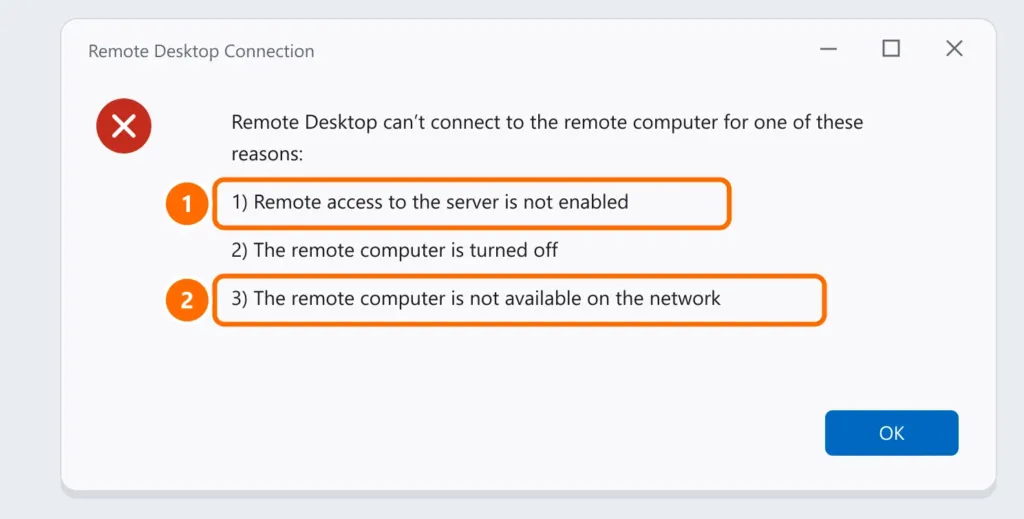
When you try to reach another computer with Remote Desktop Connection, you get a message that it can’t connect? The steps below are done on the target computer (the one you want to reach), unless the step says otherwise.
In this article
Step 1: check the Windows edition on the target
The target computer must run Windows 11 Pro, Enterprise or Education. Windows 11 Home doesn’t accept Remote Desktop connections — it can only connect to others. Check the edition under Settings › System › About.
Step 2: turn on Remote Desktop
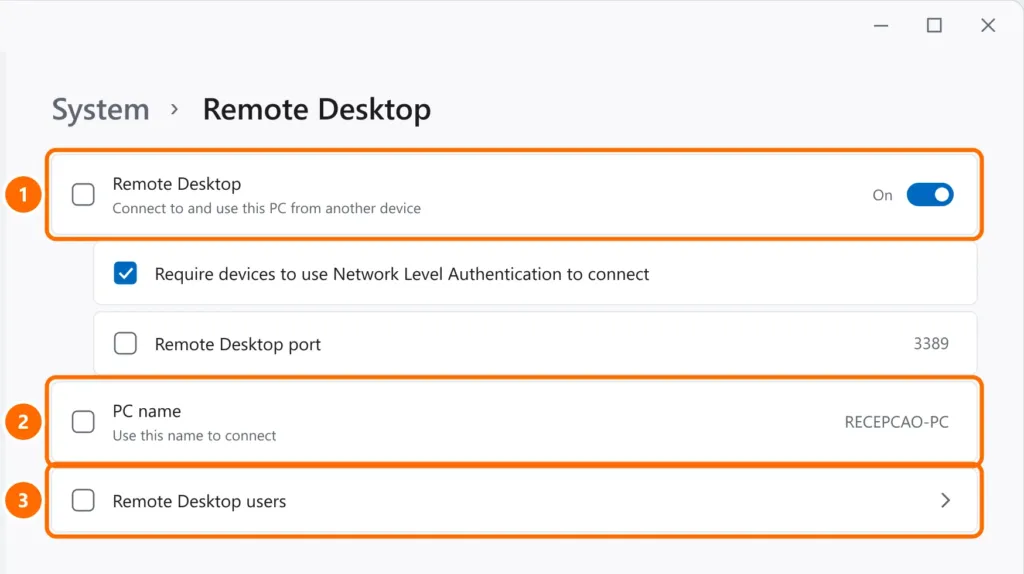
- On the target, open Settings › System › Remote Desktop and turn on the toggle.
- Keep Network Level Authentication checked.
- Note the PC name — that’s what you type in the connection.
- Under Remote Desktop users, add whoever needs access (administrators already have permission).
Step 3: test the network and port 3389
On the computer you’re connecting from, in PowerShell:
Test-NetConnection -ComputerName RECEPCAO-PC -Port 3389If it works by IP but not by name, the network isn’t resolving the name — the steps in how to fix error 0x80070035 (private network and network discovery) fix both problems.
Step 4: firewall
When you turn on Remote Desktop, Windows opens the firewall automatically. If another antivirus/firewall is installed, or the network is set to public, the connection may be blocked. In Windows Security › Firewall & network protection › Allow an app through firewall, make sure Remote Desktop is checked for Private networks.
Step 5: credentials
- Use a user account from the target computer. If it signs in with a Microsoft account, enter the account’s email and password (a PIN doesn’t work over Remote Desktop).
- On company domains, use
DOMAIN\user.
FAQ
I get “Your credentials did not work”.
Check the username and password for the target computer. With a Microsoft account that only signs in with a PIN, sign in once on the target using the account password, then try again.
The screen goes black after connecting.
Update the target’s graphics driver and, in the connection, under Show Options › Display, lower the resolution.
Can I use it on Windows 11 Home?
Not as the target. Alternatives are third-party remote access tools or upgrading the edition to Pro.