
Windows 11 has problems nothing seems to fix, or you’re selling the computer? You don’t need a USB drive: Windows has the tools to reinstall itself. Start with the lightest option and only move on if you need to.
In this article
Before you start
- Back up your files to an external drive or the cloud — see the 3-2-1 backup rule.
- Make sure you know the Microsoft account password used on the computer.
- If the drive uses BitLocker, confirm where your BitLocker recovery key is.
- Plug the laptop into power. The process takes from 30 minutes to a few hours.
You don’t lose your Windows license: the computer reactivates automatically from the digital license.
Option 1: reinstall through Windows Update (keeps everything)
On current versions of Windows 11, Settings › System › Recovery has Fix problems using Windows Update. It reinstalls your current version of Windows keeping apps, files and settings — it fixes many corrupted system file problems.
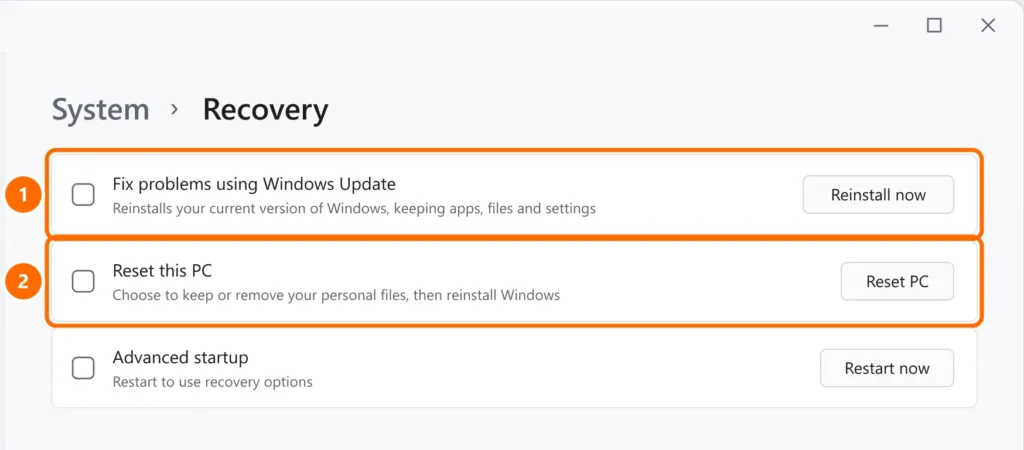
Option 2: Reset this PC
- In Settings › System › Recovery, click Reset PC.
- Choose an option: Keep my files: removes apps and settings but keeps documents, photos and other personal files. Best for fixing Windows; Remove everything: deletes files, apps and settings. Use it to sell or give away the computer.
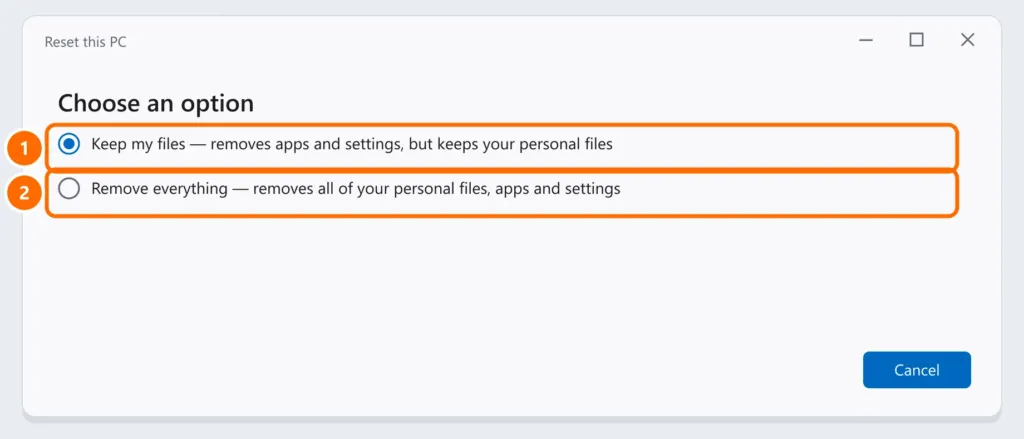
- Choose how to reinstall: Cloud download (downloads a fresh copy of Windows, about 4 GB) or Local reinstall (uses files already on the computer). If local reinstall fails, use cloud download.
- Review the summary and click Reset.
If Windows won’t start
From the sign-in screen: hold Shift and click Power › Restart. Then choose Troubleshoot › Reset this PC. If even the sign-in screen doesn’t appear, see Windows 11 won’t boot.
Selling or giving away the computer?
Choose Remove everything and, under additional settings, turn on Clean data. It takes longer, but makes it much harder for someone else to recover your files.
FAQ
Does resetting the PC remove viruses?
Remove everything gets rid of practically any Windows malware. With Keep my files, an infected file among your documents stays there — run a scan afterwards.
Do I lose my Windows license?
No. The same edition reactivates automatically once online.
How long does it take?
From 30 minutes to a few hours, depending on the computer (an SSD is much faster than a hard drive) and the option you choose.


