To change your Wi-Fi password, see who’s connected or change the channel, you need to open your router’s settings page in a web browser.
In this article
1. Find your router’s address
The address is your network’s Default Gateway.
- Press Windows + R, type
cmdand press Enter. - Type
ipconfigand press Enter. - Look for Default Gateway under the adapter you’re using (Wi-Fi or Ethernet).
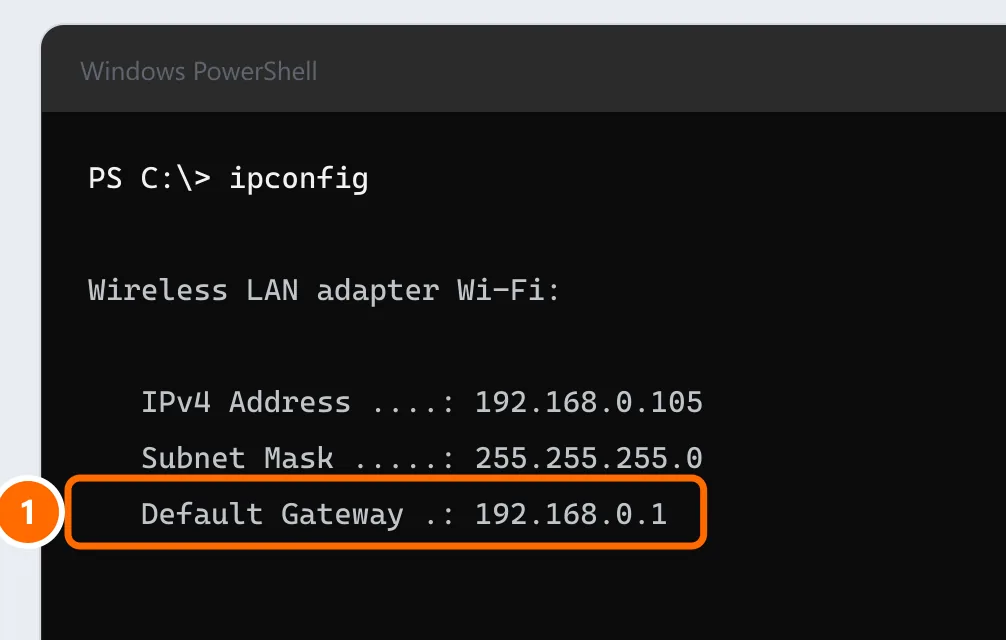
The most common addresses are 192.168.0.1, 192.168.1.1 and 10.0.0.1 (used by Xfinity gateways), but always check with ipconfig.
2. Open the settings page
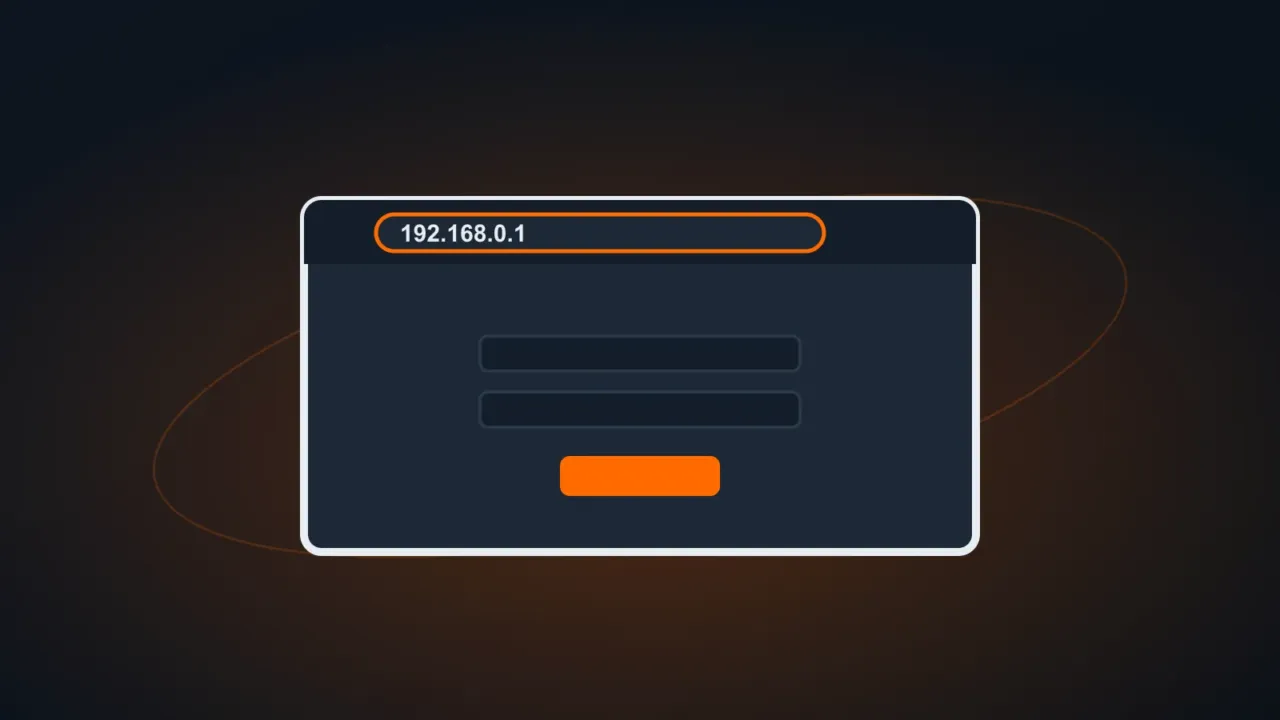
- Type the address into your browser’s address bar (not the Google search box), for example:
http://192.168.0.1. - If you see a “connection not secure” warning, that’s normal for this local page: continue.
3. Default username and password
- They’re on the label on the bottom or back of the router (fields like “Username”, “Password”, “Admin”).
- Routers supplied by your internet provider (ISP) usually have a unique password printed on the label.
- If the password was changed and nobody remembers it, only a reset restores the default (hold the Reset button for 10 seconds). Warning: a reset erases all settings.
4. Change your Wi-Fi name and password
It’s usually under Wireless / Wi-Fi › Security.
- Change the network name (SSID) if you want.
- Choose WPA2-PSK or WPA3 and create a strong password (at least 12 characters). See strong passwords.
- Save. Your devices will disconnect and need the new password.
While you’re there, turn off WPS and, if you have visitors or employees, set up a guest network.
The page won’t open
- Make sure you’re connected to that router’s network.
- Use the exact Default Gateway address, with
http://in front. - Turn off your VPN.
- On networks with two devices (your provider’s modem + your own router),
ipconfigshows the address of the device you’re connected to.
FAQ
I forgot my Wi-Fi password, but my PC still connects.
You can see the saved password in Windows. See how to see your Wi-Fi password.