When a program won’t install, the message (or the lack of one) already says a lot about the cause. Go through the cases below.
In this article
“This app can’t run on your PC”
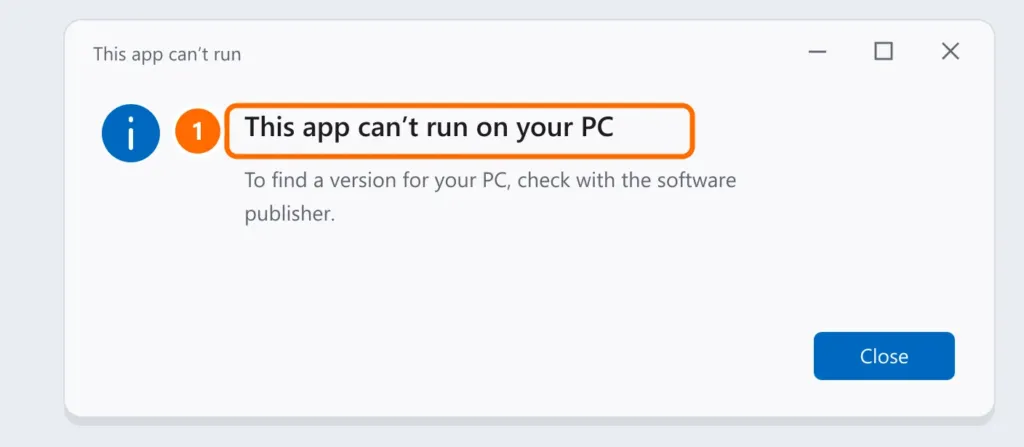
This message almost always means an installer for a different architecture or operating system:
- A 64-bit program on 32-bit Windows (rare today, but it happens on old PCs).
- A program built for ARM on an Intel/AMD PC, or a program with a driver that doesn’t work on ARM laptops (Snapdragon, NVIDIA RTX Spark). See what changes on Windows on ARM laptops.
- A partially downloaded or corrupted file.
What to do: under Settings › System › About, check the System type (for example, “64-bit operating system, x64-based processor”) and download the right version from the program’s official website.
Windows only lets you install from the Microsoft Store
- Open Settings › Apps › Advanced app settings.
- Under Choose where to get apps, check whether it’s set to The Microsoft Store only.
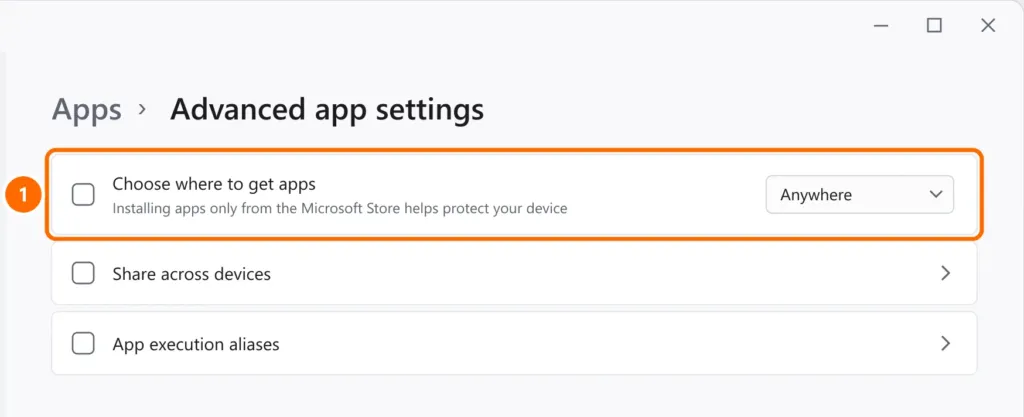
At home, you can change it to Anywhere. On a work computer, IT usually sets this option on purpose: talk to them first.
Windows 11 in S mode
Some laptops come with Windows 11 in S mode, which only accepts apps from the Microsoft Store. To leave it: Settings › System › Activation › Switch out of S mode (opens the Microsoft Store). Switching is free, but it’s one-way.
Smart App Control blocked it
On PCs with a fresh install of Windows 11, Smart App Control may block programs without a digital signature. Check under Windows Security › App & browser control. If the blocked program is from a trusted source, download the latest signed version from the official website instead.
The installer does nothing or asks for an administrator
- Right-click the installer › Run as administrator. On a work PC, you may need an administrator’s password.
- Restart the PC: a pending Windows update can block new installs. If Windows Update is showing errors, see Windows Update errors.
- Make sure there’s free space on drive C: (at least a few GB). See how to free up disk space.
- Very old program: right-click › Properties › Compatibility › Run this program in compatibility mode for Windows 8 or 7.
FAQ
The program installed, but it doesn’t show up in the Start menu.
Search for its name in the Start menu or under Settings › Apps › Installed apps. If the Start menu won’t open, see Start menu not working.
It says a version is already installed, but I can’t find it.
Uninstall the old version under Installed apps and restart before installing the new one.


