File Explorer almost always freezes because of something it tries to load when it opens: a network folder that isn’t responding, thumbnails for lots of photos and videos, a PDF in the preview pane or a program that hooks into the right-click menu.
In this article
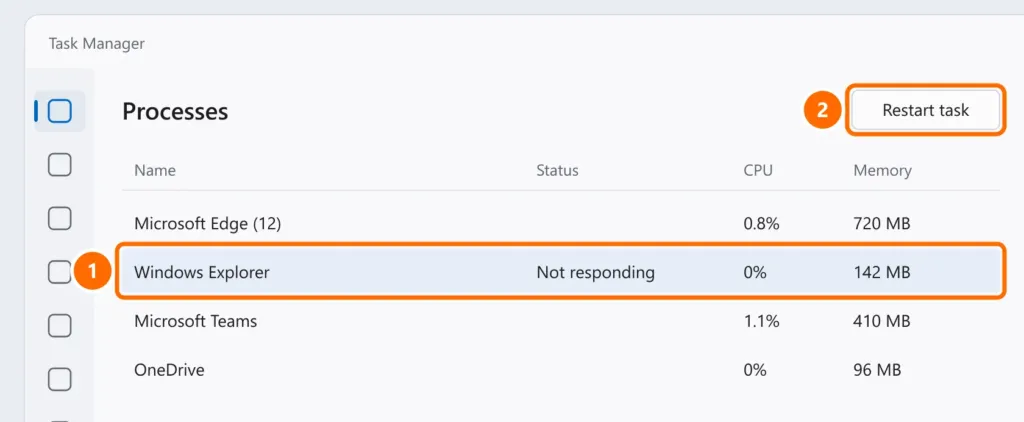
1. Restart Windows Explorer
- Press Ctrl + Shift + Esc.
- Select Windows Explorer and click Restart task.
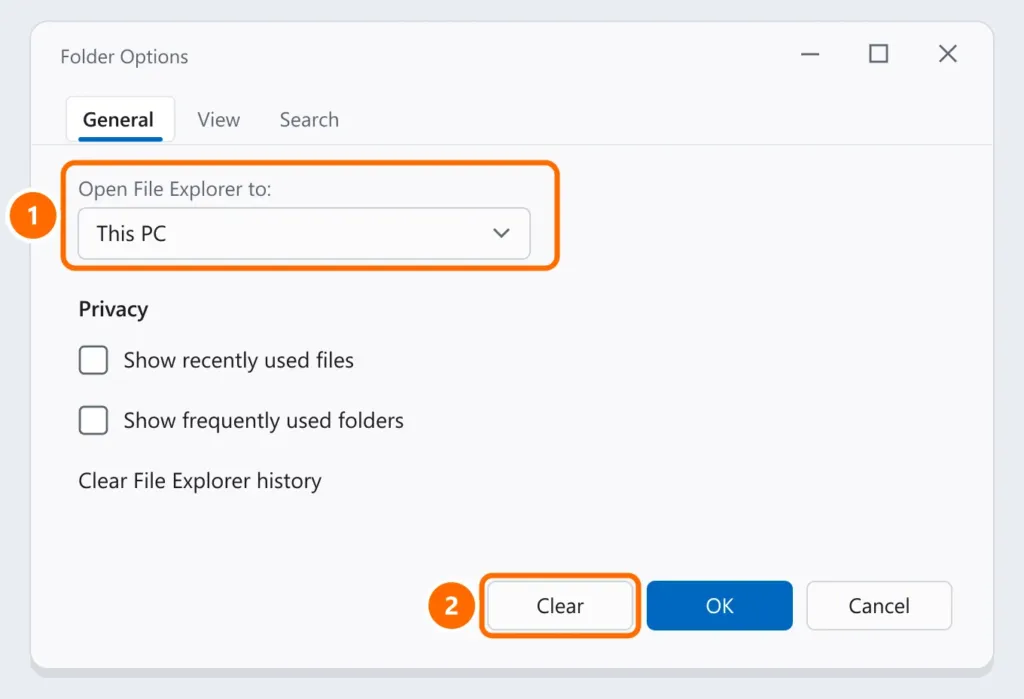
2. Open to “This PC” and clear the history
Quick access tries to show recent files, including from network folders and USB drives that are no longer connected. While it waits for a response, File Explorer freezes.
- In File Explorer, click the three dots (…) › Options.
- Under Open File Explorer to, choose This PC.
- Under Privacy, click Clear.
3. Disconnected network drives
A mapped drive pointing to a server that’s turned off makes File Explorer freeze every time it opens. In This PC, right-click the drive with a red X › Disconnect, and map it again when the server is back. See how to map a network drive.
4. Preview pane and thumbnails
- Turn off the preview pane: Alt + P (or View › Show › Preview pane).
- Folders with thousands of photos and videos: switch the view to Details instead of large icons.
5. Programs in the right-click menu
If File Explorer freezes when you right-click, a recently installed program (compression tool, antivirus, cloud sync app) may be to blame. Update or uninstall the last one you installed and test again.
6. OneDrive and syncing
OneDrive folders with lots of files syncing can slow File Explorer down. Pause syncing for 2 hours (cloud icon › gear › Pause syncing) and see if it improves. If OneDrive is having problems, see OneDrive not syncing.
7. Repair the system
If nothing worked, run sfc /scannow and DISM /Online /Cleanup-Image /RestoreHealth as administrator. The step-by-step is in Start menu not working.
FAQ
It only freezes when I open the Downloads folder.
Downloads often holds many large files. Right-click the folder › Properties › Customize and choose Optimize this folder for: General items.


